 Table of content

Rolisteam v1.10 introduces a completely new instant messaging module. It has been written from scratch. It provides new features.
Show/Hide the instant messaging panel
Since Rolisteam v1.10, the instant message panel can be open from this  in the toolbar of Rolisteam.
Надіслати повідомлення

As you can expect, you can type your message in the bottom part, and press Enter or click on send.
Надсилання зображень

If you send an image's URL, the image will appear on the screen.

It must be an image, the URL must end with image extension: .jpg, .png, .bmp…
Send Links
If you send a URL, it will become clickable. Clicking on it, open the website in Rolisteam's web page.
Default Chatrooms
At start up, Rolisteam adds automatically several chatrooms. The first chatroom is always the Global chatroom where all players and the Game Master talk together. Then, follows one to one chatrooms.
Default chatrooms can't be closed.
Global chatroom
This chatroom brings together everyone. When new person connect to the server it is automatically added to the global chatroom.
One to One chatroom
Rolisteam prepares one to one chatrooms. When you want to chat with only one person is the best way to do it.
Add new chatroom
To add a chatroom, go to settings > Add chatroom.
A dialog will appear. From it, you can set the name of your new chatroom, and select who are participant of this chatroom. If you select All, all players will be involved, even ones who are not yet in the game. Rolisteam makes sure that all in-game players will receive the messages. Then, you can allow or deny the new chatroom per in-game player.


Added chatrooms can be closed, using the corner cross.
Roll Dice
To roll dice command, you must prefix your command with !. The result is displayed in frame. You can see the details by clicking on the symbol on the right.
Просторова кістка
When someone has rolled dice using the 3D dice system. The result will appear like that:
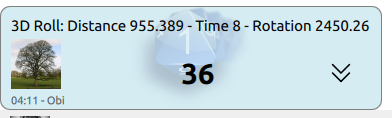
As 3D Dice is a new feature, we prefer notify players that it has been used. We display some metrics in order to make sure the dice rolled enough. The higher the numbers are, the best it is.
- Distance made by the dice between the press and release button of the mouse.
- Time in second for the system to stabilize
- Rotation : sum of rotation changes on the dice.
Change Chatroom layout

By default, chatroom are displayed using tab. Only one chatroom is visible at the time. You can change that. The contextual menu offers all features around chatroom's layout.
How to see two chatroom at the same time
On the contextual menu, you must click on Split XXXX (where XXXX is the name of the current chatroom).
Move a chatroom
When you have two (or more) groups of chatroom, you can move chatroom from one group to another. Group with no chatroom are automatically closed.

Merge group into the main one
Merge means to move the chatroom to the main one. Group with no chatroom are automatically closed.

Chatroom Menu
On the top-right corner, you can see a  .
.
This menu appears:
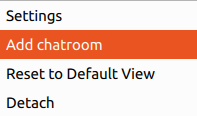
1. Параметри
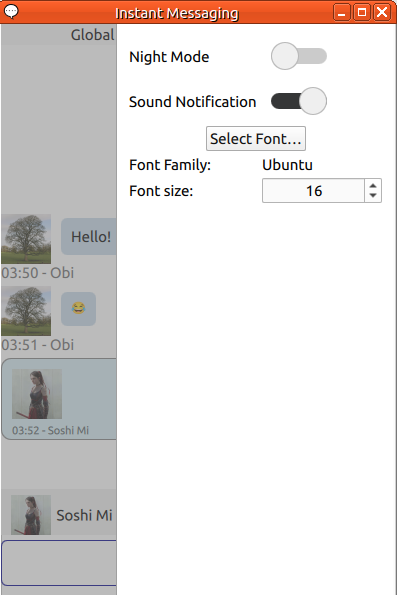
- Темний режим
- Розмір шрифту
- Звукове сповіщення
Settings are strictly local. Your players won't receive your changes.
2. Додати кімнату спілкування
Here, the popup to select who you want in this additional chatroom.
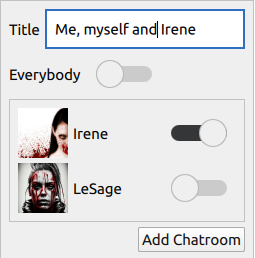
(PS: manually creating a chatroom with another person is available, even if you already have a dedicated chatroom to talk to him/her)
3. Повернутися до типового перегляду
Reset the whole layout. All chatrooms return to the main group.
4. Від’єднати
Detach the instant messaging window. Then you can put it outside Rolisteam.