 Table of content
We have seen how to set up the campaign, and the dice aliases, then, we saw how to create battle map. The next step is to create character sheet for our game.
To do that, Rolisteam ships a tool called RCSE. This is the editor for character sheet. Let see how to use it.
Make a character sheet with RCSE
The Rolisteam Character Sheet Editor is the best tool to make character sheet. Its design is dedicated to provide experience as close as possible to using the official character sheet of any RPG game.
To make a character sheet, please follow these few steps:
Step 1: Import image (or PDF)
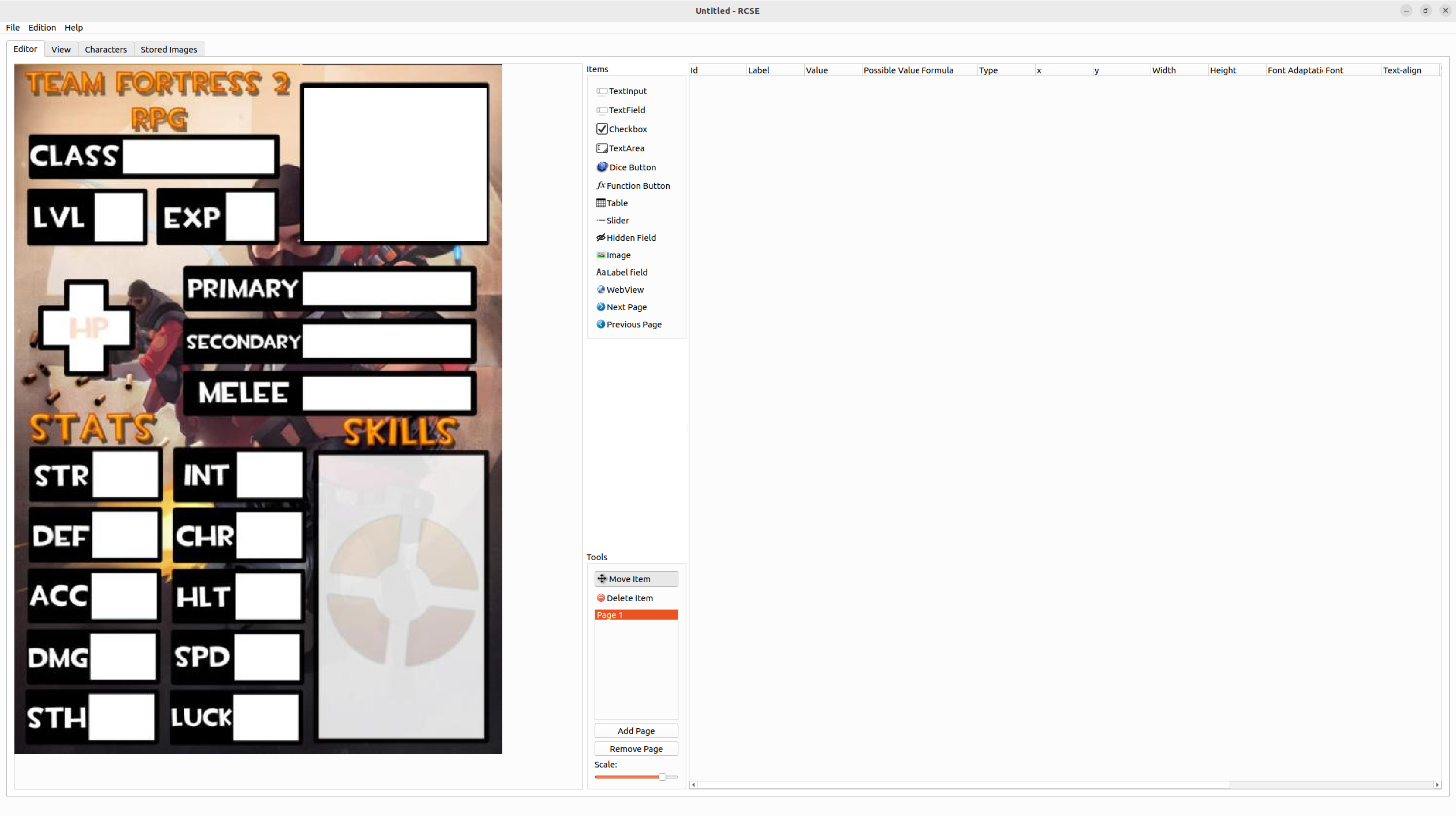
The first step is to drop background image on the editor (left side of Editor tab). This image could be the official charactersheet of your game for example.
There are two ways to import image:
- Drag and drop image from your computer to RCSE (left side).
- You can also import from the menu > Define Background Image
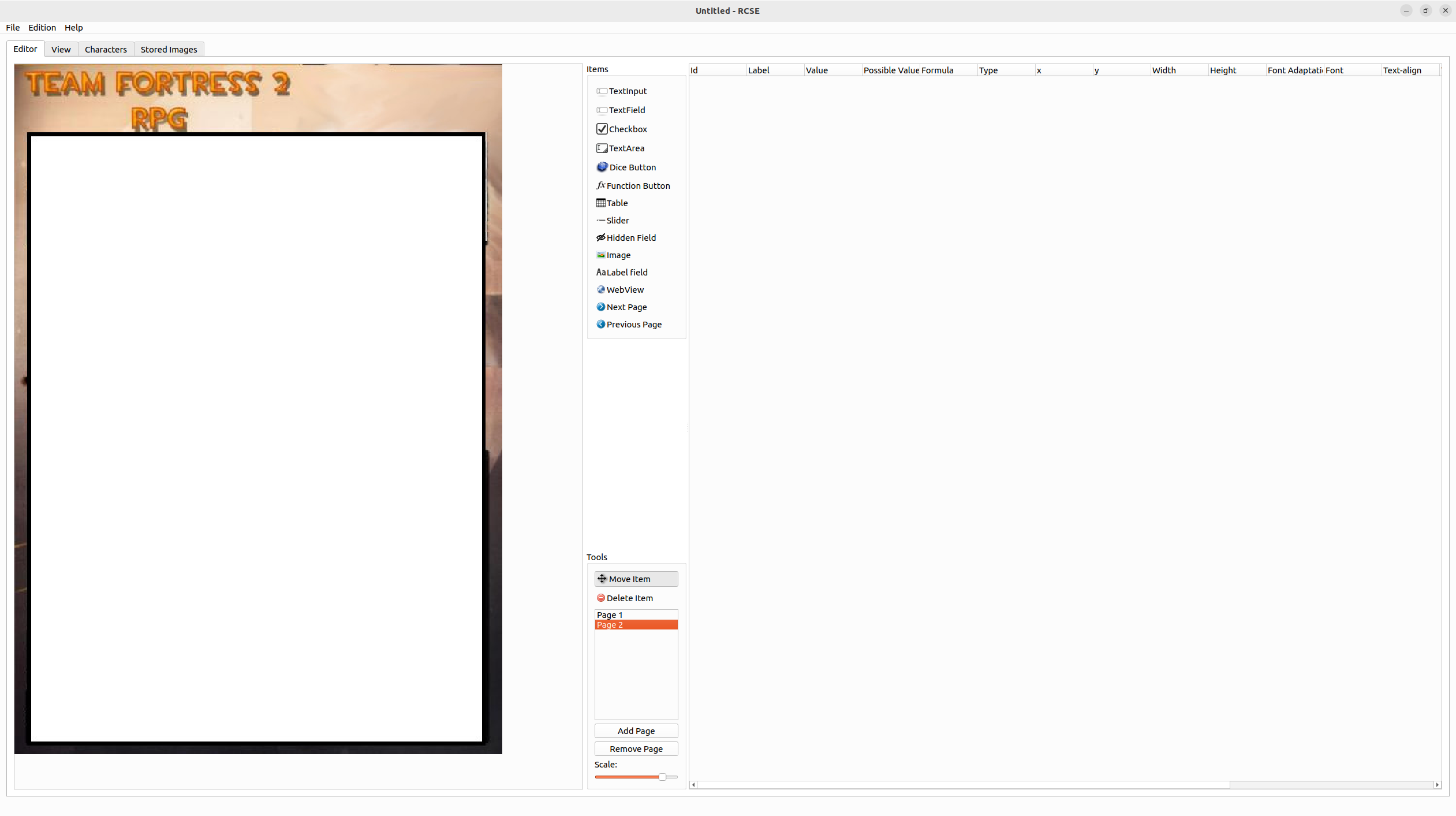
In the case, where you need several pages into your charactersheet. You can easily add pages with the button dedicated to this task. Then you will have to define the background of new pages by importing background images.
Збережіть ваш файл!
How to use PDF as background
RCSE has a native support for PDF.
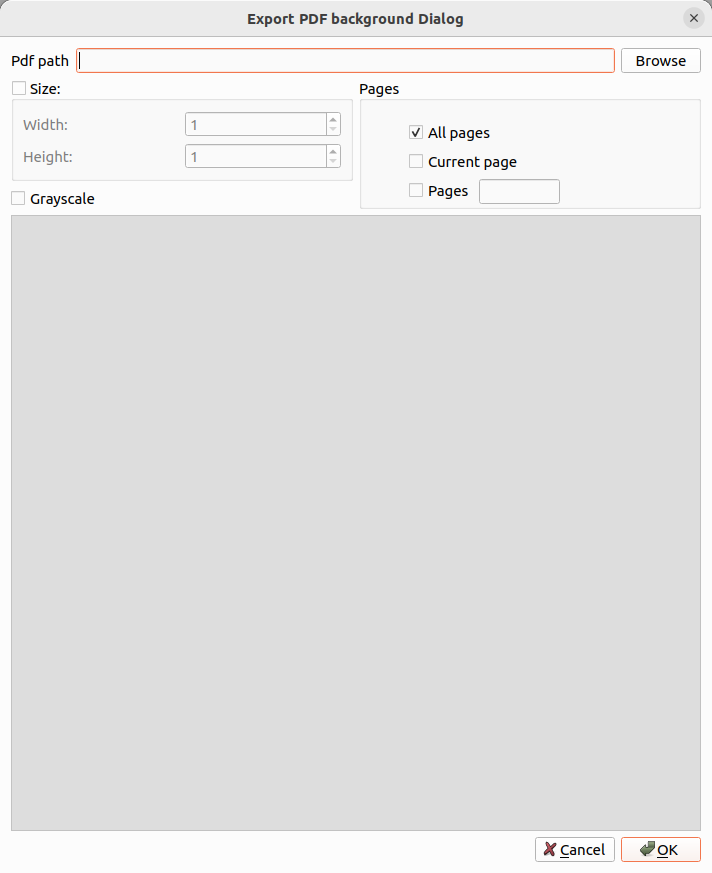
You just have to go File > Import PDF. This dialog will open:
Click on Browse to select your charactersheet file.
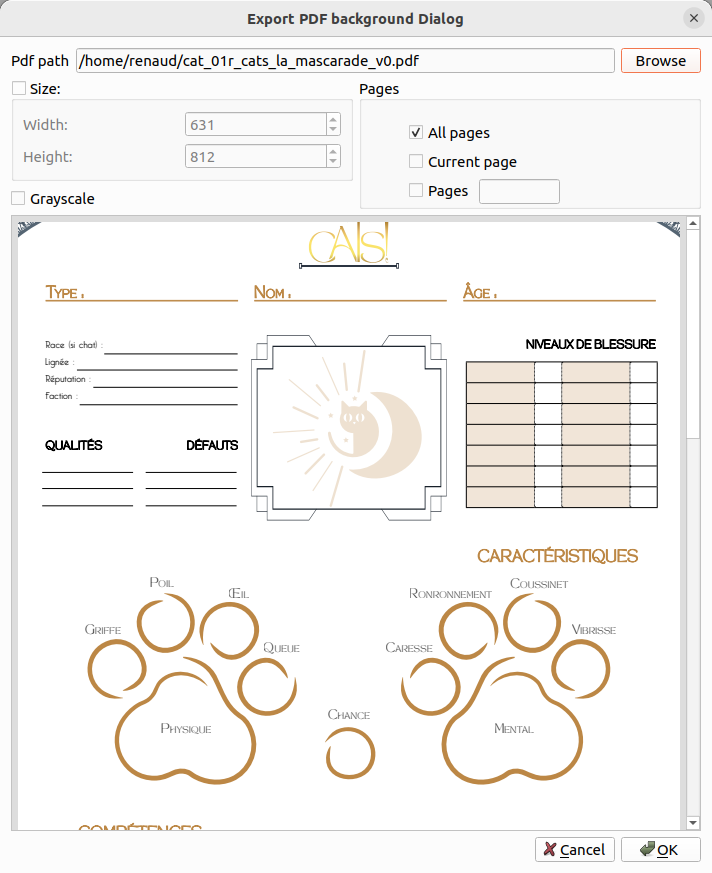
Далі, ви можете
- Встановити розмір (експортованих зображень)
- Вибрати сторінки
- Створити знімок у відтінках сірого
Останній крок — просто натисніть кнопку «Гаразд».
And voilà: As you can see, it supports multipage sheet.
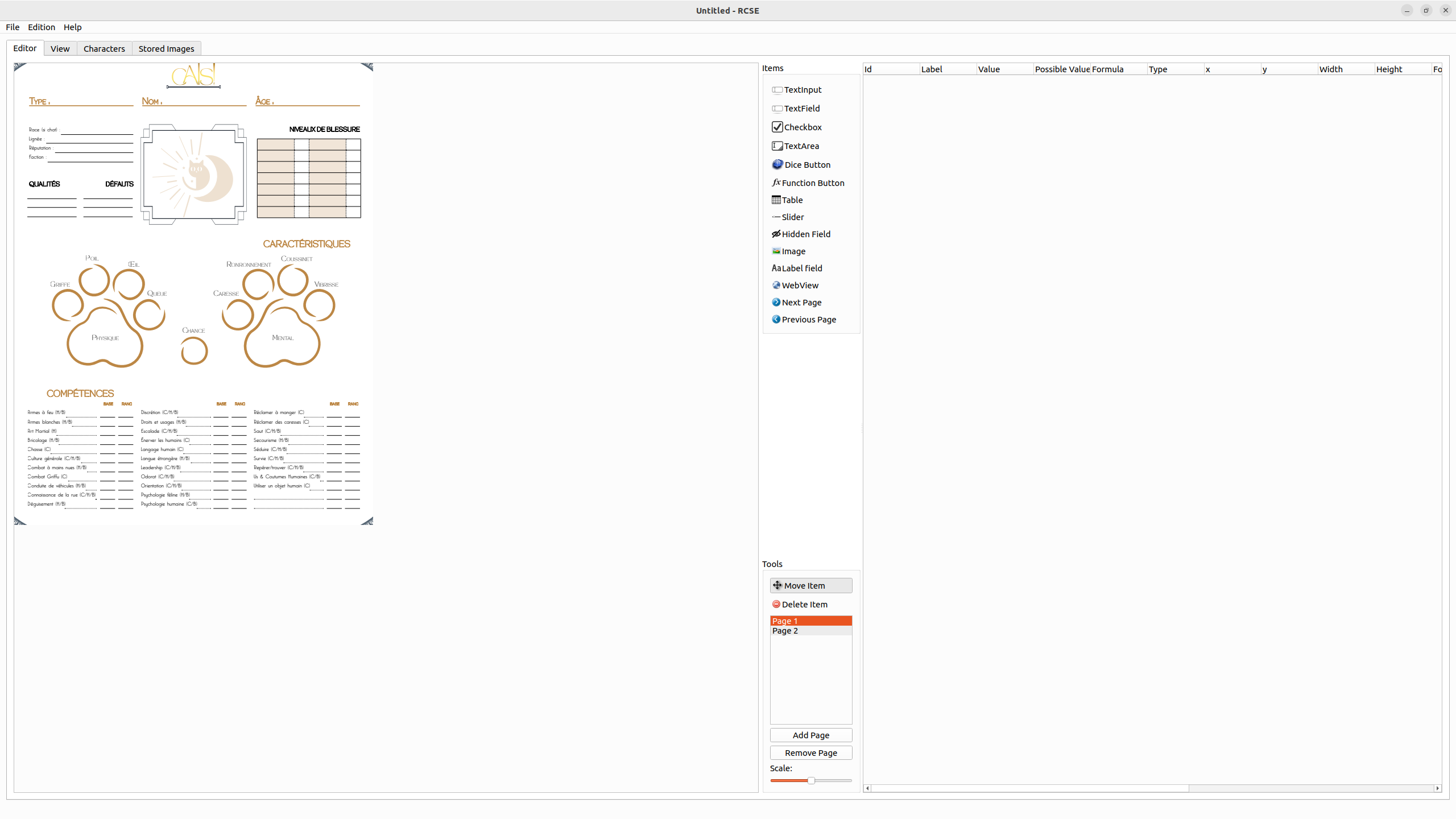
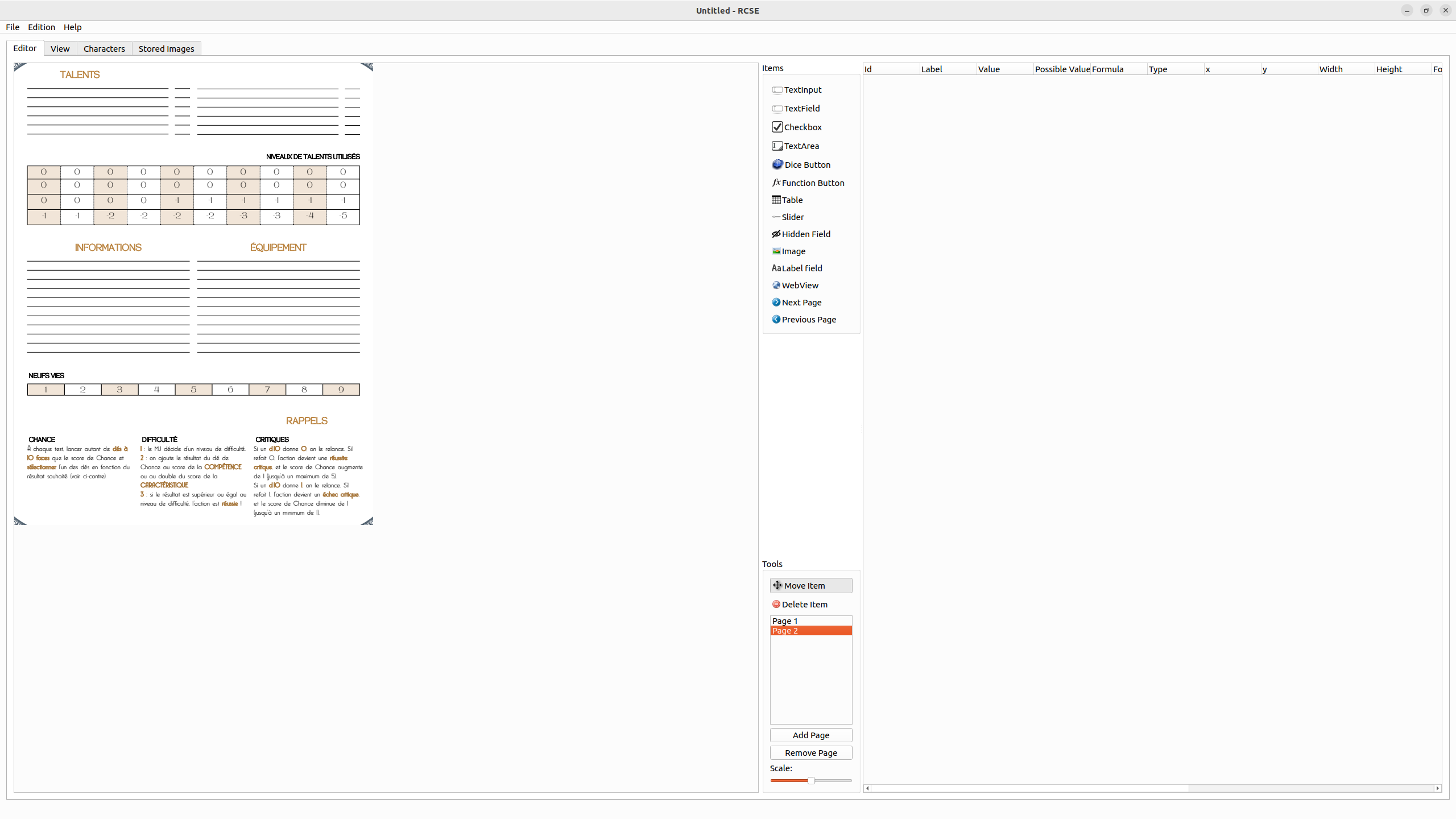
Step 2: Add fields on the sheet
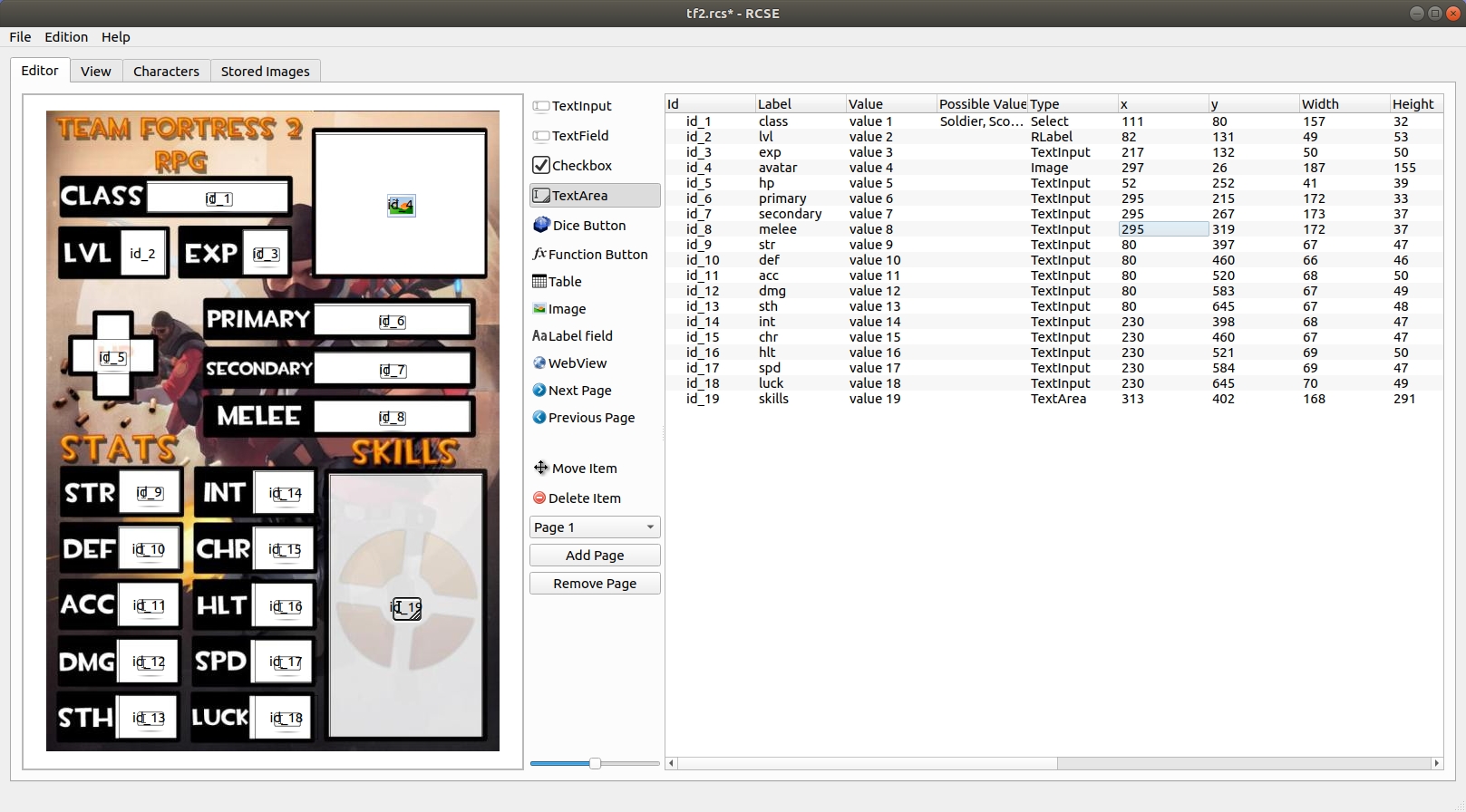
Then, it is important to set the position of each field. This work can be really long but thanks to RCSE you can make it graphically.
Each field is also added onto the right table. You can remove field from this table.
There are many types of field available into RCSE.
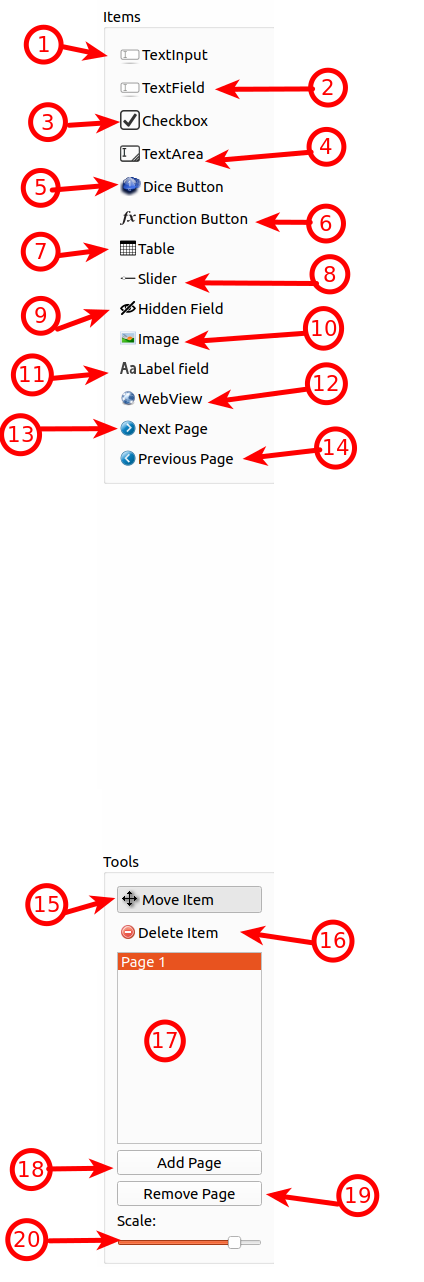
| id | Назва | Опис |
|---|---|---|
| 1 | Введення тексту | Single line text Input with no borders or no decoration. Can be promoted to selector (see below) |
| 2 | Текстове поле | Single line text Input with borders and decoration. |
| 3 | Позначка | Stores 0 or 1 value, and display it as checkbox. |
| 4 | Текстова область | Multiline text input with decoration and border. |
| 5 | DiceButton | Add clickable button to roll dice command, the command must be set as the value of the field |
| 6 | Функціональна кнопка | Add clickable button to call QML function or make any computation |
| 7 | Таблиця | Add dynamic table, manage several lines (useful for managing list of skills, objects…) |
| 8 | Повзунок | Select value between min and max value (0 to 100 by default) |
| 9 | Приховане поле | Add hidden field on the sheet, This allows an intermediate calculation to be performed. |
| 10 | Зображення | Display a image from an url |
| 11 | текстова мітка | Add read-only text label |
| 12 | Вебперегляд | Add web view, set URL as value to show any website |
| 13 | Попередня сторінка | Add Button to make navigation between pages easier (go to the previous page) |
| 14 | Наступна сторінка | Add Button to make navigation between pages easier (go to next page) |
| 15 | Пересунути | Tool for selecting or moving fields. |
| 16 | Вилучення записів | Remove Items when you click on them while this tool is the current one. |
| 17 | Вибір сторінок | Easy access to pages |
| 18 | Додати сторінку | Add page at the end of all existing pages. |
| 19 | Вилучити сторінку | Remove currently selected page |
| 20 | Масштаб | Set the current sheet scale |
- Виберіть інструмент
- Click on visual editor (left side)
- A placeholder appears on the visual editor and a new line is added on the right side
- Move the mouse cursor to define the proper size for this item (size can be changed after)
Збережіть ваш файл!
Step 3: Edit fields
When all your fields are set, it is important to name them. This name can be use into formula.
Including the name, many other properties can be edited. All you have to do is to edit from the right table on the first tab.
Збережіть ваш файл!
Details about each column:
Ід.
This property is the unique ID for that data. By default, RCSE generates them automatically. It is recommended to keep the default value. Changing them requires respecting some rules:
- Start with lower case letter
- Недостатньо місця
- Letters, digits and _
- No special character
Ids can be used to get access to character information in formula.
The shorter, the better: Examples: =${id_5}+4
Мітка
This property is a human-readable ID for that field.
It is recommended to set the label of all fields.
It is possible to get access to the data by its label: =${intelligence}+4.
Значення
The field value is displayed onto the character sheet. Please set values close to real game values. There are two reasons about that:
- Values are used inside formula. So computation of formula can be checked.
- As values are displayed, you can adjust the element (size, font, color) to make sure it is readable.
Values are set with generated text.
Можливі значення
This field is only useful for TextInput. It allows changing a TextInput to selector. Selector (also known as Combobox) are items dedicated to select one value from limited list.
To define the value set, values are separated with comma: head,body,left arm,right arm,left leg,right leg
Тип
Change the field's type to another. Table can't be converted to another type (and no field can become a Table).
X
Field Position on X-axis (left to right). You can change it to align fields precisely.
Y
Field Position on Y-axis (top to bottom). You can change it to align fields precisely.
Ширина
Width of the field. You can change it to align fields precisely.
Висота
Height of the field. You can change it to align fields precisely.
Адаптація шрифту
This option can be enabled to adapt font size to the size of the character sheet.
Вирівнювання тексту
You can set where the text should be displayed in the field.
| Top left corner | Top center | Top right corner |
| Middle left | Middle center | Middle right |
| Bottom left corner | Bottom center | Bottom right corner |
Колір тексту
You can set the text color.
Колір тла
You can set the background color
Рамка
You can set where the border should display (Top, right, left bottom, all or no border)
Збережіть ваш файл!
Step 4: Generate sheet
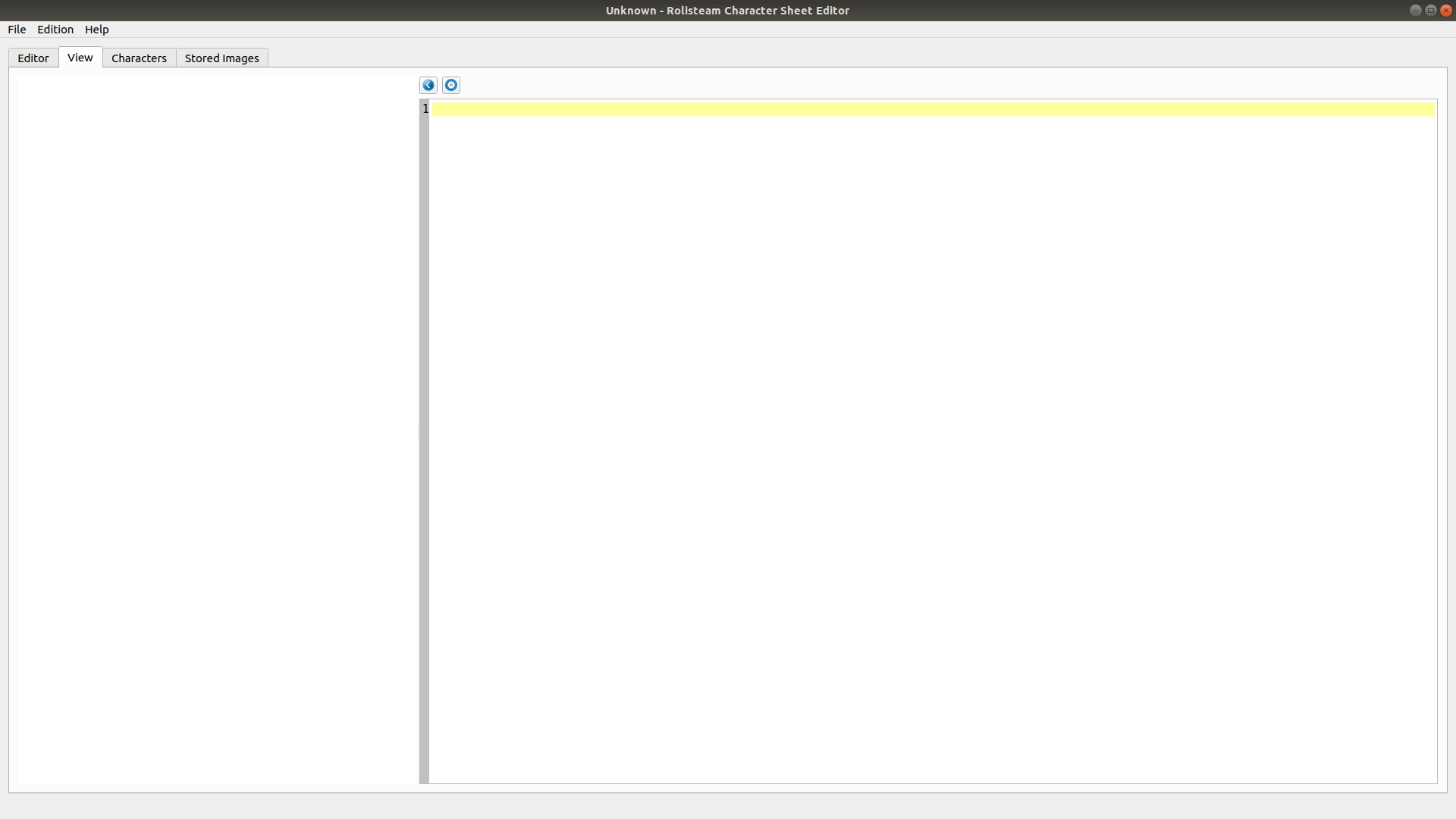
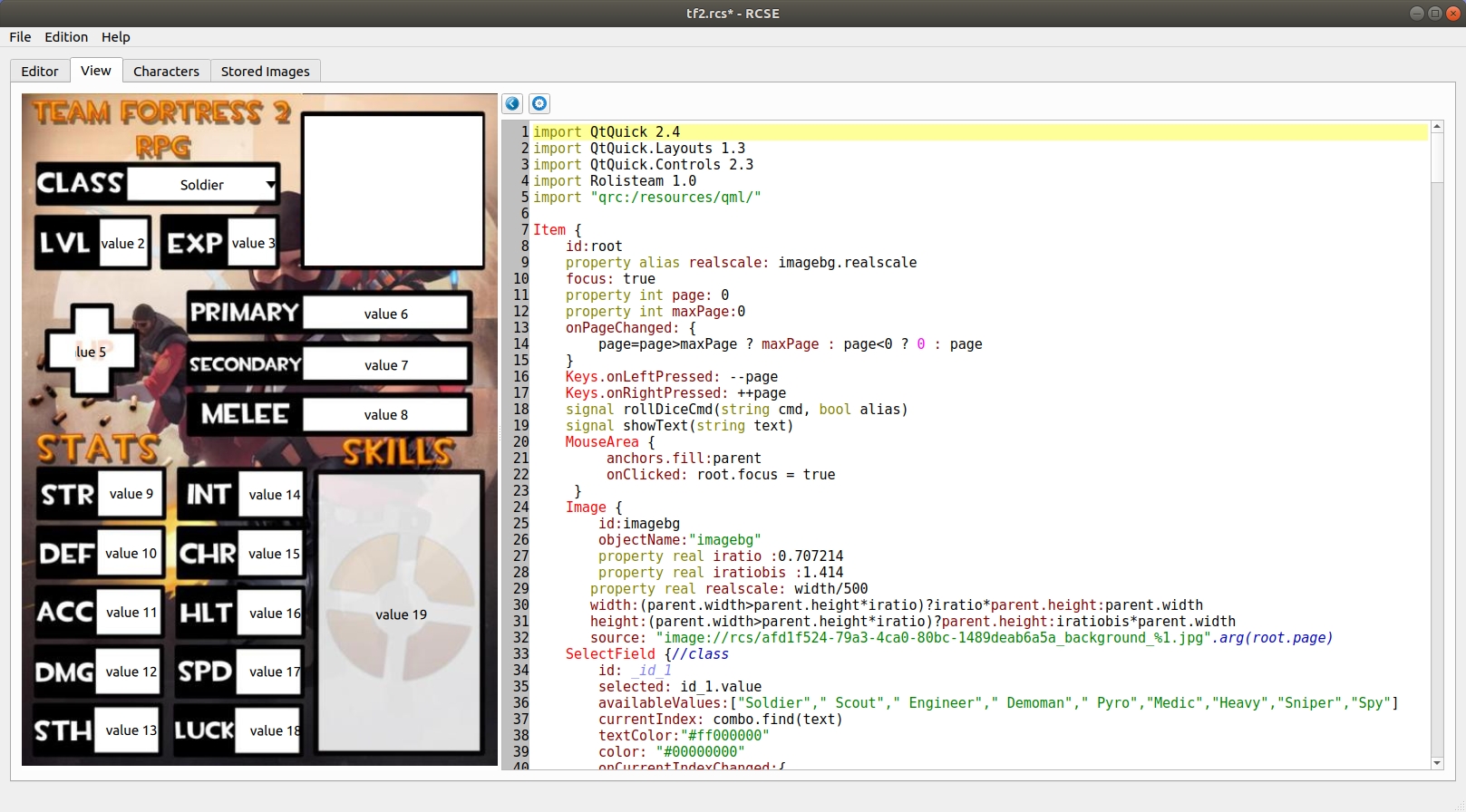
When you have added all the fields you want, you may generate the sheet by clicking onEdit menu > Generate Code and Sheet (Ctrl+r).
Sheet is visible in the View tab. The tab shows sheet exactly as it will be in Rolisteam.
The code tab sees its content changed by this action. It shows QML code.
You can adjust the sheet (in the editor tab step 3) and generate again and again until it fits your needs. You can repeat this operation as many times as you
want to get the perfect result.
Збережіть ваш файл!
Write your own QML

It is also possible to amend QML code directly to add new features to the sheet. You can play music, videos or add animations and many other stuffs. Be careful, when you modify the generated code, you must not ask to generate code and sheet. It will erase all your modifications.
Step 5: Add characters
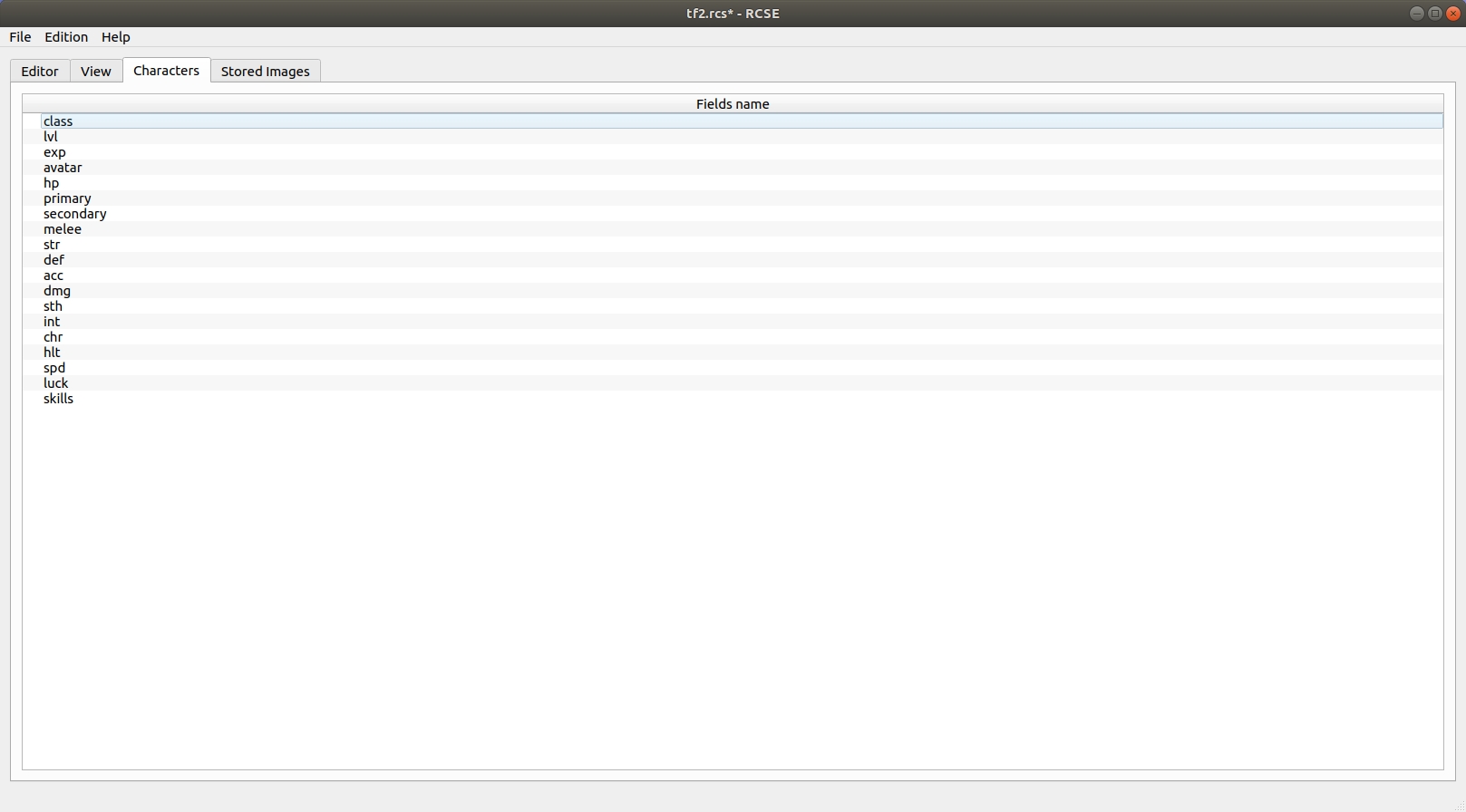
Let's go to the third tab: Characters. From here, characters can be added into the file.
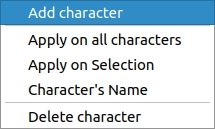
A column appears for each added characters. It is recommended to add default value for each field. RCSE helps you to set one value on several lines. One cell can be defined as the character's name. This will set the column header.
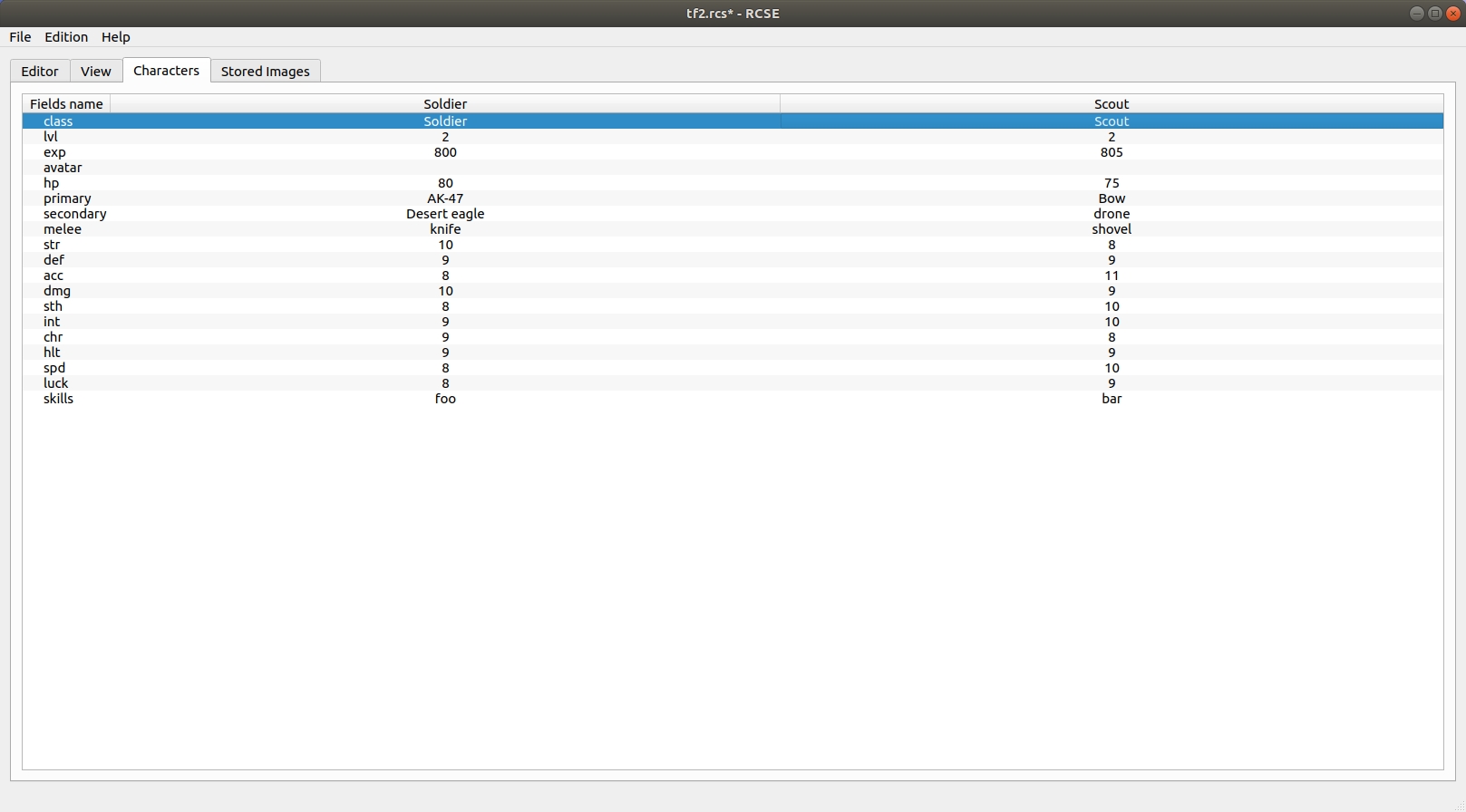
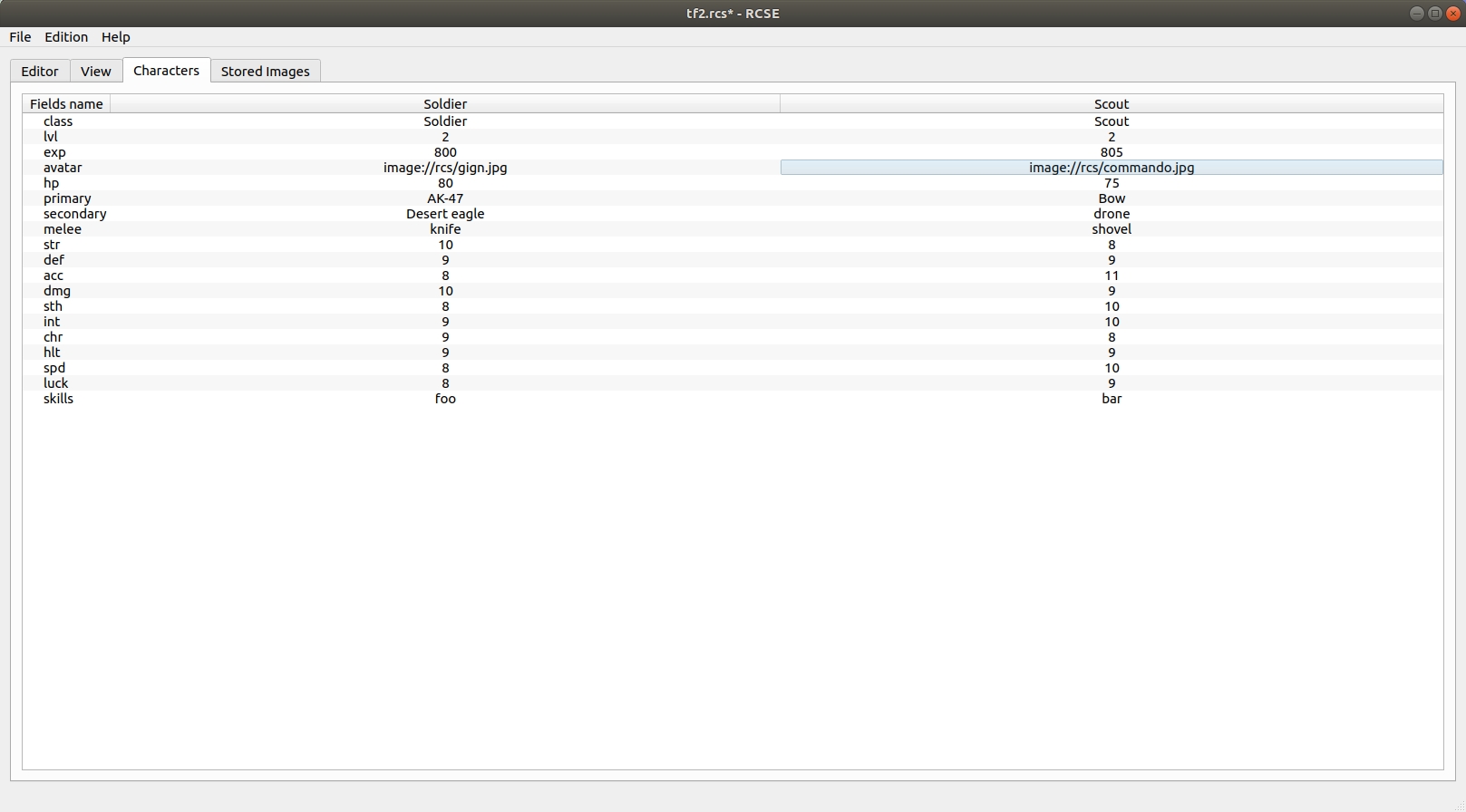
As you can see, there is no data for avatar. In order to set images into character sheet. There are two options: First, the laziest solution is to put a URL to the image (http://site.com/image/myAvatar.png). The second solution is to go to the stored images tab.

Step 6: Add images [optional]
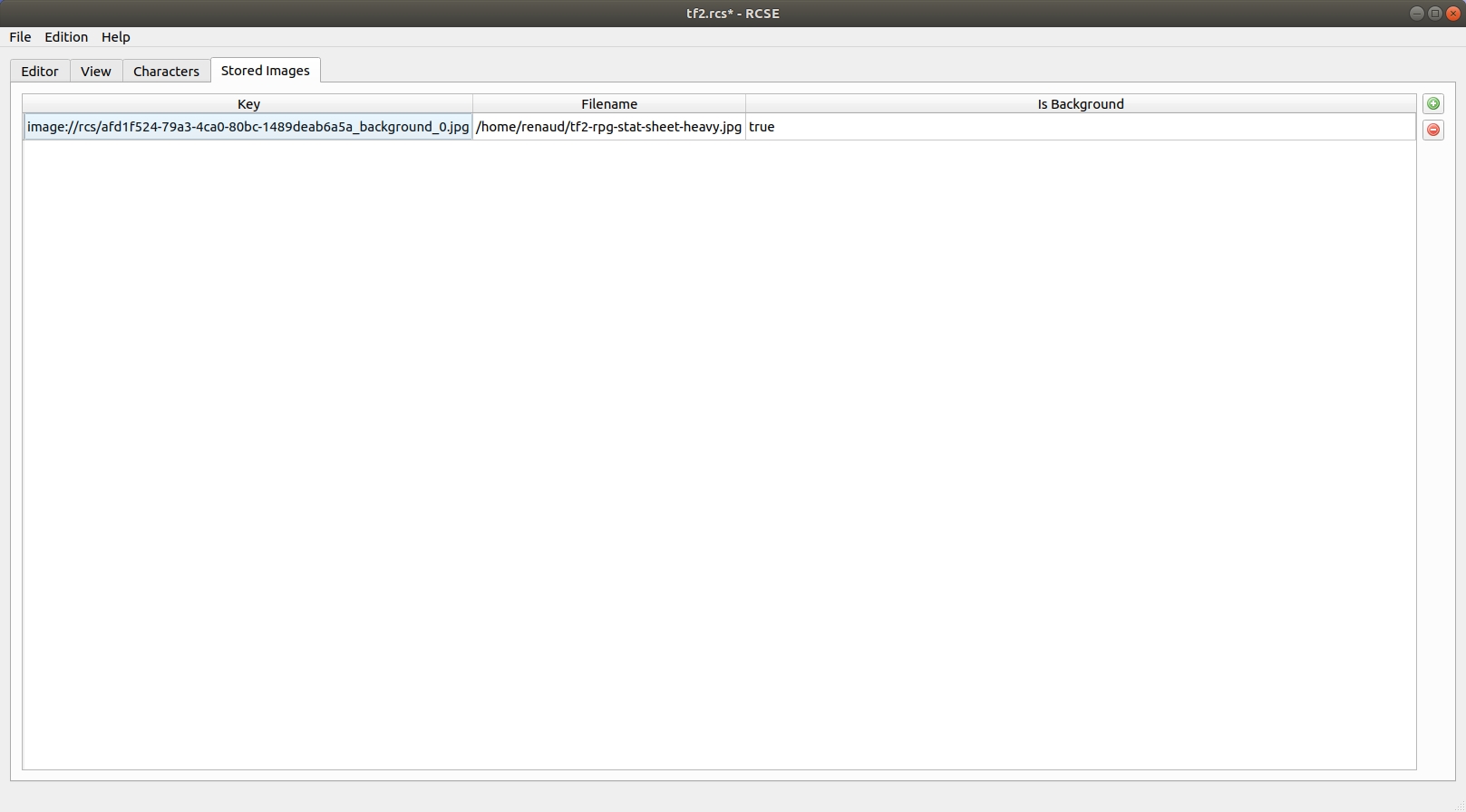
Then, click on add button
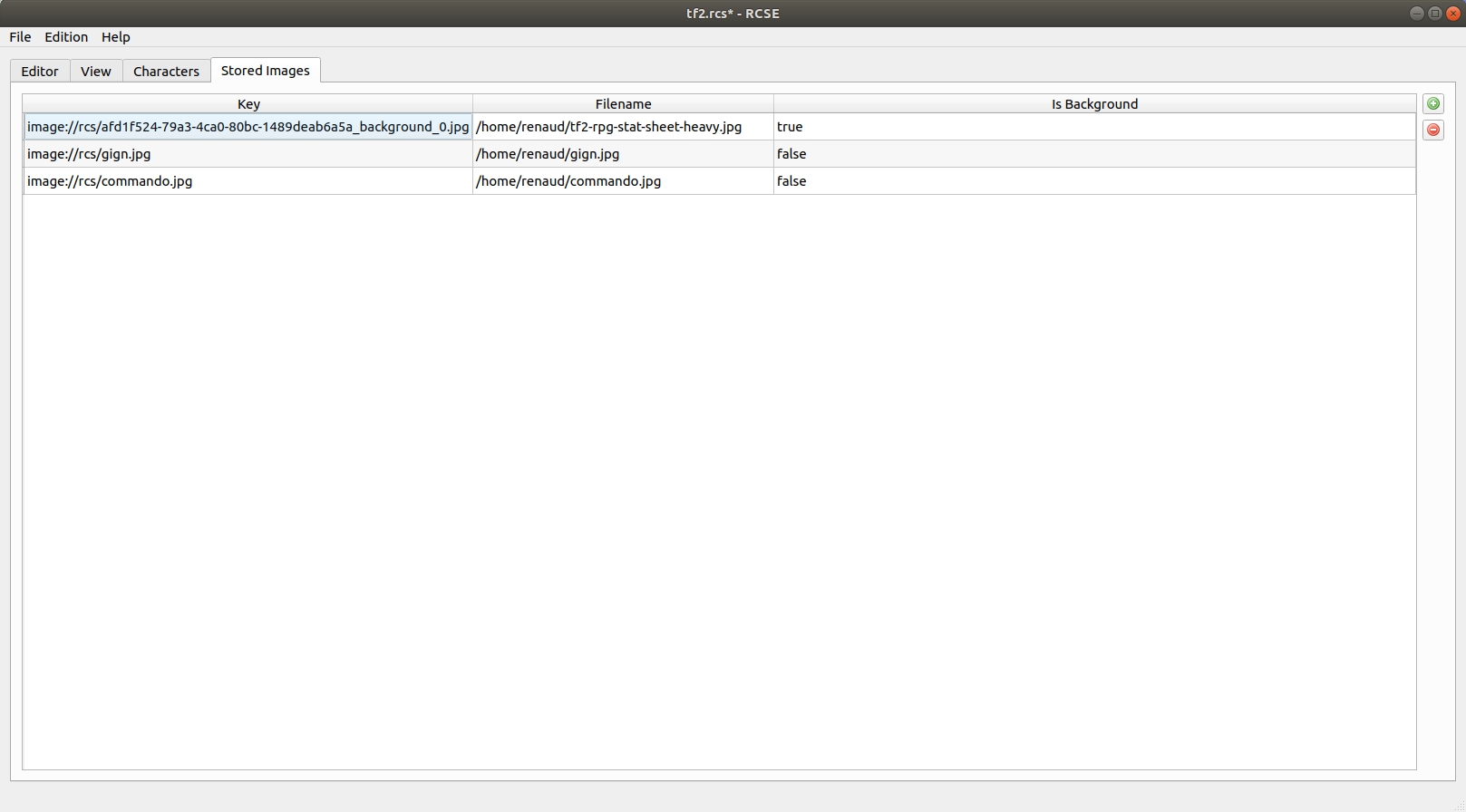
Then we have to copy the URL of each image and paste it in the appropriated character. The contextual menu offers the action to copy the URL.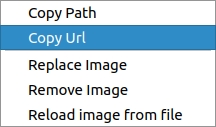
Then paste it into character.
Збережіть ваш файл!
Step 7: Formula and automatization [optional]
Character sheet embeds formula engine. You can compute automatically values. The sheet does the job for the GM or player. To add a new formula, you just have to start the line with = such as any spreadsheet software.
Можливі дії
The formula system can manage many functions and operations.
Get value
As we saw, you can get the value of any field thank of its label or ID. You must encapsulate ID or label like this: ${label} or ${id}.
Арифметика
You can do all usual operations.
Приклади:
Сума
4+4
${intelligence}+3
Віднімання
12-3
${intelligence}-3
Множення
=2*7
=2x7
=${intelligence}*3
Ділення
=15/5
=15÷5
=${intelligence}/3
=${intelligence}÷3
abs
Модуль приймає лише один аргумент.
=abs(-3)
3
=abs(3)
3
=abs(${intelligence}-11)
8
min
This function takes several arguments.
=min(3,8,10,1)
1
=min(${wits},${dexterity})
3
max
This function takes several arguments.
=max(3,8,10,1)
10
=min(${wits},${dexterity})
4
concat
This function takes several arguments.
=concat(${investigation}+${perception},"G",${perception})
7G3
=concat(${investigation},"d10k",${perception})
4d10k3
floor
Функція приймає один аргумент.
=floor(3.9)
3
=floor(3.1)
3
=floor(${force}/2)
1
ceil
Функція приймає один аргумент.
=ceil(3.9)
4
=ceil(3.1)
4
=ceil(${force}/2)
2
avg
This function takes several arguments.
=avg(10,10)
10
=avg(8,4)
6
=avg(${intelligence},${dexterity})
3.5
Step 8: Use character sheet in Rolisteam
Open/load character sheet
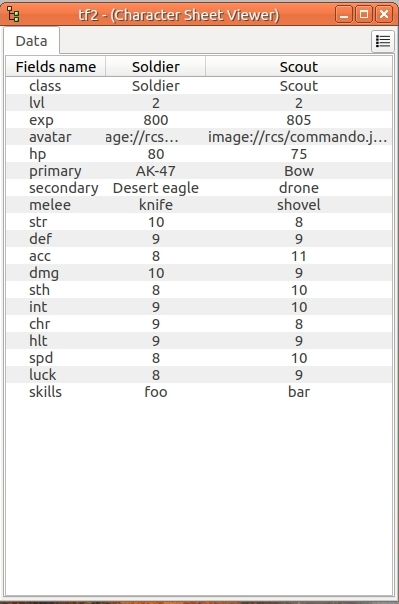
When you save character sheet with RCSE, you get a .rcs file. This file must be loaded in Rolisteam (File > Open > Character Sheet or CTRL+U). A new window opens and you see a data tab (picture).
It is the same that the characters tab in RCSE.
It shows all values from characters. GM can have a good overview about all stored characters at once.
Share character's sheet to the player
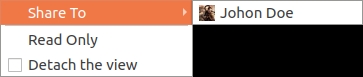
GM must share the character sheet with their player's character.
The view will be generated and send off to the player. To do that, you must click on the Share sub-menu from the contextual menu.
Then, you have to pick a character (picture).
View tab is added.
On player screen, the character sheet window appears with two tabs: data and view. Player and GM can change values from both view.
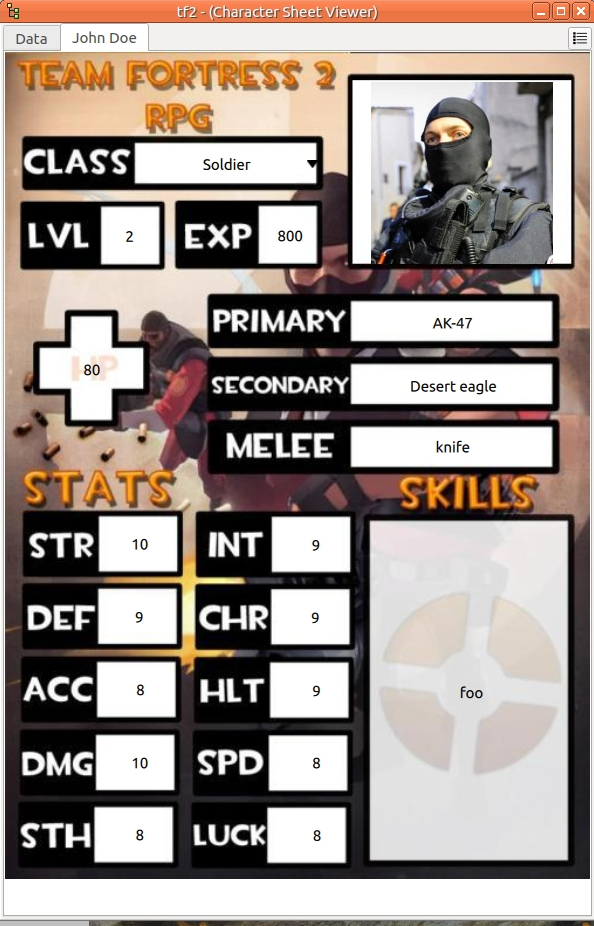
Due to technical limitation, data tab does not show data from sub-fields in table.
Many pages
As we saw, it is possible to create character sheet with several pages. In the view tab, you can change page by pressing Left or Right key.
It is also possible to provide clickable button to manager that.
You can also copy the view and/or detach the tab. This is the way to see several pages at once.
Поширені питання
How to use dicebutton ?
The dicebutton allows users to roll dice directly from the character sheet. The result is displayed in the global chat room. The rolled command is the value of field and it displays its label.
Setting label to Initiative will show Initiative on all character sheets.
Dice command is set in value column. For example, if you set 3d6, the roll will always roll "3d6" (It is strictly equivalent of rolling !3d6 in the chat). Now, many dice rolls depend on character sheet values.
Let's say, we have to roll "1d20+the character's agility bonus", the agility bonus is stored in a field ( id: id_64, label: agilityBonus).
In the dice button value, you can write: 1d20+${agilityBonus} or 1d20+${id_64}.
There is no need of formula here. As the dice system is able to make translation between to variables "${....}" to value. After sharing charactersheets to players, each player is able to roll: !1d20+${agilityBonus} in the chat room.
Warning: doing that, will only work after sharing the character sheet to its player. If the GM click on button Rolisteam won't be able to know in which characters it must read the value. We plan to fix this issue in future release.
The dice button is emitting a signal roll dice. This signal takes two parameters: the command to roll and a boolean. The boolean means to enable or disable the use of dice aliases.
Rolling huge command with string results (such as 1L[head,left leg, right leg, left arm, right arm, chess]) may cause conflict with aliases.
How to promote Textinput into selector ?
Selector type displays a menu where players can select one option among several propositions. To change any field in selector type, the only required action is to define possible values in the dedicated column into the right table. Values are separated by comma.
Example: red, blue, green, brown, yellow, black, white, orange, purple.