 Table of content
Вступ
Одна з найбільших нових можливостей — карта битв. Основна відмінність цього нового плану від старих карт полягає в тому, що нові плани дозволяють додавати елементи та змінювати їх. Наприклад, ви можете додати прямокутник і змінити його розмір, повернути або перемістити. Можна перетворювати таким чином усі елементи.
Список можливостей
- Light and dynamic shadow
- Z-позиціювання: кожен наступний елемент додається над попередніми.
- Нескінченний розмір плану
- Збільшити
- Зменшити
- Пересувати камери планом
- Змінювати елемент на карті (додавати, збільшувати, зменшувати, переміщати, обертати, вилучати)
- Керування жетоном персонажа
- Ці жетони надають змогу переглядати зображення персонажа
- Додати зображення
- Ці зображення можна анімувати (gif…)
- Керування накладеннями
- Елемент можна розташувати у наборі (основа, об'єкт або персонаж)
- Непрозорість
- інші…
Нова карта
Вам достатньо відкрити меню Файл, потім перейти до підменю Створити, потім вибрати Карта. Буде відкрити діалогове вікно:
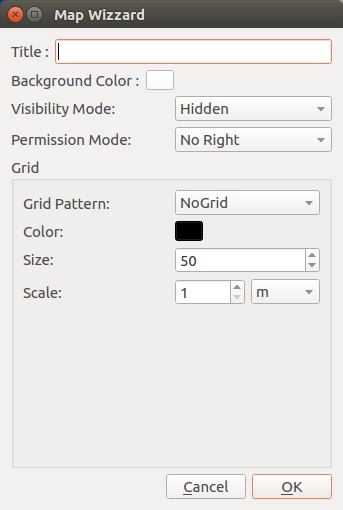
- Заголовок буде показано у верхній частині панелі карти. Таким чином панель буде простіше знайти у робочому просторі.
- Колір тла буде використано як загальний колір карти (типове значення: білий).
- Видимість визначає, як ваші гравці бачать карту. «Прихований» означає, що вони нічого не бачать. «Туман війни» приховує всі елементи карти (ви можете змінити туман, щоб зробити видимими деякі елементи). «Видимий» – гравці можуть бачити всі елементи карти. Ви можете змінити видимість у будь-який момент гри.
- Режим доступу визначає набір можливих дій для гравців. Ви можете будь-коли його змінити.
- Схема сітки визначає форму сітки: без схеми (без сітки), квадратна сітка, шестикутна сітка.
- Ви можете змінити колір сітки.
- Розмір визначає кількість пікселів у одній окремій схемі сітки.
- Масштаб визначає вибрану вами одиницю розміру схеми сітки.
Редагувати карту
Панель інструментів

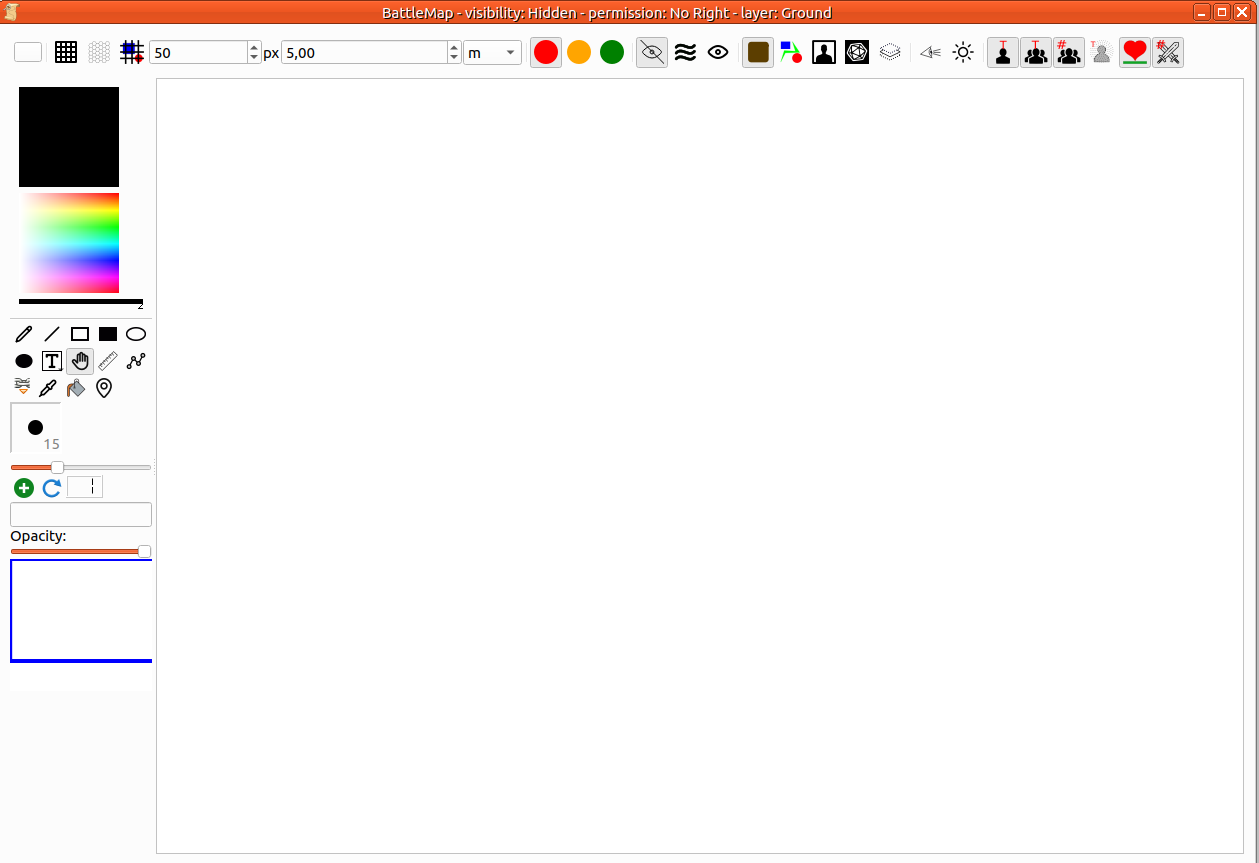
| Номер зони | Назва | опис |
|---|---|---|
| 1 | Тло і сітка | 1. Встановити/Змінити колір тла 2. Показати/приховати сітку 3. Шестикутна сітка 4. Сітка над картою (або під нею) 5. Розмір однієї комірки сітки 6. Масштаб 7. Одиниця масштабу |
| 2 | Режим прав доступу | Передбачено 3 режими дозволів: Червоний (вибрано): лише організатор гри Помаранчевий: гравець може переміщати лише свій жетон персонажа Зелений: Гравець може робити що завгодно |
| 3 | Режим пріоритетності | Передбачено 3 режими: 1. Прихований (вибраний): карту буде показано як зазвичай для організатора гри, але повністю порожня з боку гравців. 2. Туман війни: карту буде показано під полем зору. Організатор гри має право розкрити її частину. 3. Видимий: карта буде повністю видимою. |
| 4 | Поточний шар редагування | Карта керує поточним шаром. Це означає, що ви можете змінювати лише візуальний елемент, що належить до цього особливого шару. Існує 4 шари: 1. Земля: тут слід розмістити всі елементи, що представляють статичний елемент: дороги, стежки, поля… 2. Об'єкт: У цьому шарі слід розмістити всі елементи, які можуть бути перешкодою для персонажів. 3. Персонаж (вибраний): Усі жетони для ігрових персонажів або неігровий персонажів. 4. Гравець: Елементи в цьому шарі видимі лише для організатора гри. Візуальні елементи належать до шару, в який вони були додані. Елемент можна легко перемістити на інший шар з контекстного меню. Остання кнопка: приховати вміст усіх інших шарів, що полегшує редагування карти. |
| 5 | Параметри видимості | 1. Активувати бачення персонажа у Тумані війни 2. Показати усі прозорі елементи |
| 6 | Параметри карти | 1. Показати/приховати текст під жетонами ігровий персонажів 2. Показати/приховати текст під жетонами неігрових персонажів 3. Показати/приховати кількість під жетонами неігрових персонажів 4. Показати/приховати стан ігрового персонажа 5. Показати/приховати шкалу здоров'я під будь-якими жетонами 6. Показати/приховати показник ініціативи на жетоні |
Панель інструментів
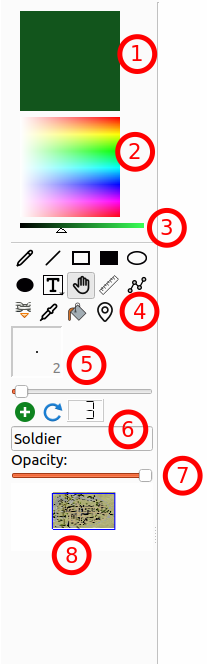
- Поточний колір: усі нові елементи буде забарвлено цим кольором. Двічі клацніть на ньому, щоб відкрити діалогове вікно вибору кольору.
- Засіб вибору кольору: змініть поточний колір натисканням правої частини.
- Яскравість кольору: зробіть поточний колір темнішим або світлішим (один зі способів вибору чорного кольору).
- Інструменти редагування: Перо, Лінія, Порожній прямокутник, Заповнений прямокутник, Порожній еліпс, Заповнений еліпс, Текст з рамкою (довге натискання для вибору без рамки), Обробник (вибір та переміщення), Лінійка, Контур, Якір, Піпетка, Відро з фарбою, Цікаве місце. Кількість доступних інструментів змінюватиметься відповідно до режиму малювання або вашого дозволу (для гравця).
- Ширина пера: визначте ширину пера: товщину лінії та розмір межі. Застосовуватиметься лише до нових елементів.
- Швидкий інструмент для неігрових персонажів: швидке додавання жетона неігрового персонажа на карту. Кожен отримає ім'я (текстове поле) та номер (автоматичне збільшення, можна скинути).
- Непрозорість: зміна непрозорості поточного вибраного об’єкта.
- Мініатюра карти: дозволяє побачити всю карту. Синій прямокутник показує ту частину карти, яку ви бачите зараз.
Якщо на панелі інструментів увімкнено Туман війни, одразу під засобом вибору 3. Яскравість кольору буде показано засіб вибору Режим малювання. Режими маскування або скасування маскування впливають лише на Туман війни.
Перший крок: визначити основу
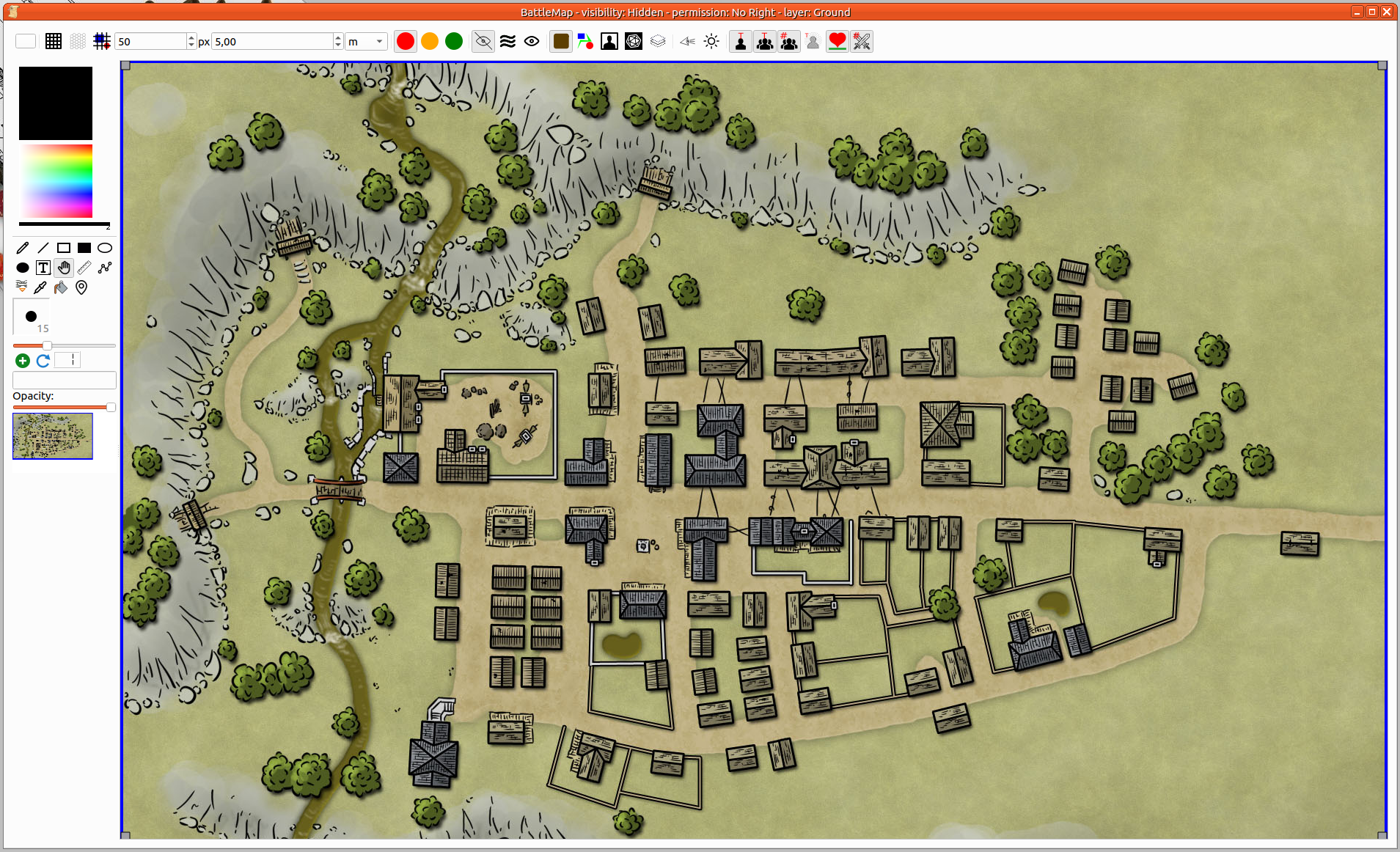
Переконайтеся, що на панелі інструментів карти вибрано шар землі. Додайте всі елементи, щоб намалювати землю, або ви можете перетягнути і скинути на карту зображення з землею.
Крок 2: додавання елементів
Ви можете вносити деякі зміни на льоту. Додавання стін, дверей… Не забудьте вибрати Шар об'єктів на панелі інструментів карти.
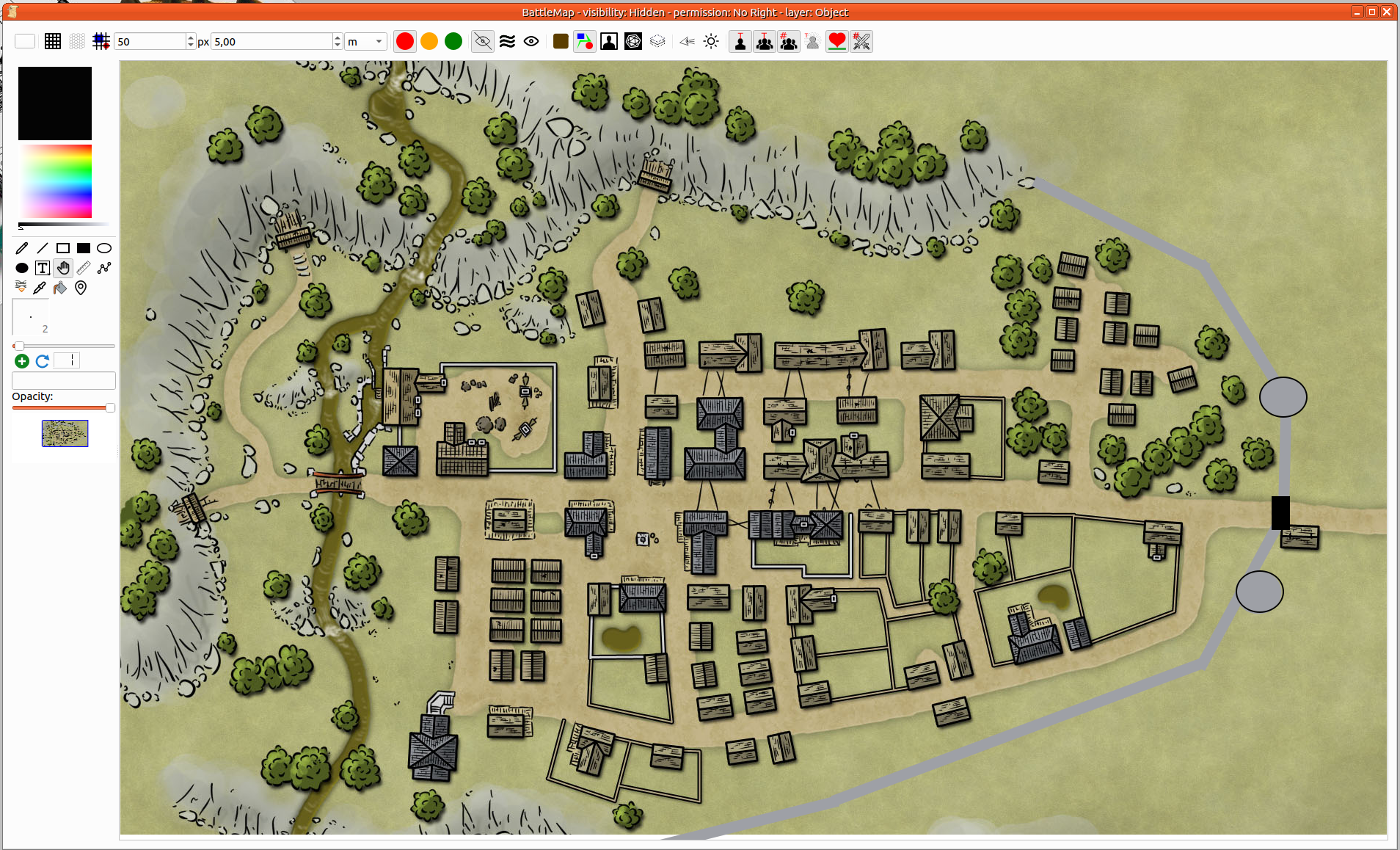
Крок 3: зміна елементів
Звичайні зміни, такі як зміна розташування, обертання та розміру, можна виконувати за допомогою інструмента Обробник. Скористайтеся ним для вибору елемента.
- Розташування: Натисніть і утримуйте будь-який вибраний елемент, а потім перемістіть вказівник миші. Елемент слідуватиме за рухами миші, доки ви не відпустите ліву кнопку миші.
- Розмір: ви можете змінити розмір елемента, пересуванням елементів керування у кутах (сірий прямокутник).
- Обертання: Натискання клавіші
CTRLнадасть вам змогу змінити обертання елемента.
Багато дій з елементами та картою можна виконати з контекстного меню. Перша частина меню — це дії з позначеним елементом (1 або кількома елементами). Друга частина стосується карти.
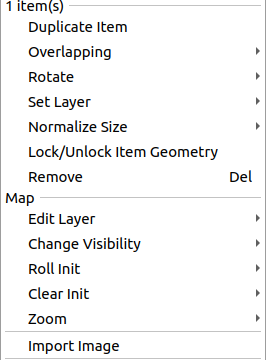
- Дублювати елементів (елемент): зробити копії всіх позначених елементів (з однаковим розміром та розташуванням). Вам вирішувати, як перемістити їх у потрібне місце.
- Перекриття (елемента): якщо вам потрібно розташувати елемент під іншим елементом або над ним.
- Обертати (елемент): застосувати певне значення обертання.
- Встановити шар (елемент): показати або визначити поточний шар, до якого належать елементи.
- Нормалізувати розмір (елемент): якщо позначено кілька елементів, ви можете змінити їх розмір відповідно до певних критеріїв: найбільший, найменший, середній…
- Заблокувати/Розблокувати геометрію (елемент): запобігати небажаним змінам.
- Вилучити (елемент): вилучити елемент з карти.
- Редагувати шар (карта): змінити поточний шар редагування карти (те саме, що й інструмент «Шари» на панелі інструментів)
- Змінити видимість (карта): те саме, що і засіб вибору видимості на панелі інструментів
- Ініціювання кидка (карта): ініціювання кидка для усіх неігрових персонажів, усіх ігрових персонажів або обох. Команда ініціювання має бути визначена у жетоні (Докладніше)
- Очистити ініціювання (карта): вилучити початкові бали для усіх неігрових персонажів, усіх ігрових персонажів або обох.
- Масштаб (карта): керування масштабом.
- Імпортувати зображення (карта): імпортувати зображення як елемент на карті. Те саме, що і перетягування зі скиданням або вставлення.
Крок 4: додавання неігровий персонажів
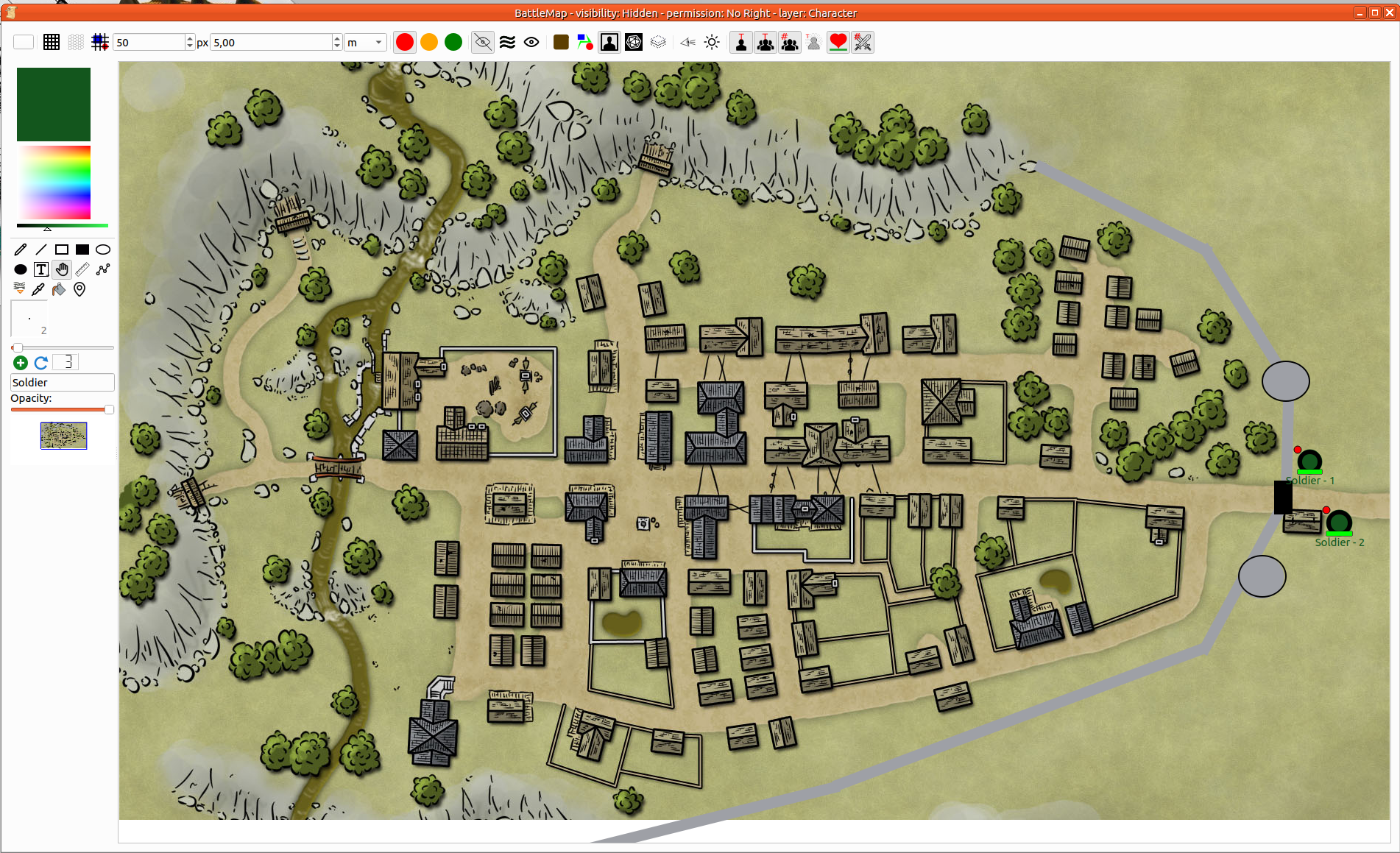
Нарешті, ви можете додати жетони неігрових персонажів. Для цього ви можете скористатися інструментом швидкого додавання неігрових персонажів з панелі інструментів або перетягнути персонажа з панелі антагоністів.
Крок 5: збереження карти
Ctrl+s або Меню кампанії > Зберегти кампанію виконає це завдання.
Під час гри

Ви можете перетягнути і скинути жетони персонажів з панелі гравців/персонажів
Позначення і керування
Збільшення і зменшення
Для керування масштабуванням карти ви можете скористатися контекстним меню (клацанням правою кнопкою миші на карті) з вибором відповідного пункту.
Крім того, ви можете натиснути Shift і скористатися коліщатком миші.
The zoom center is based on the cursor position.
Гортання вгору/вниз/ліворуч/праворуч
- Виберіть обробником поточний інструмент.
- Далі натисніть Shift (щоб захопити карту).
- Нарешті, натисніть будь-де на карті і пересуньте її.
Позначення одного або декількох елементів
Позначити елемент просто. Достатньо клацнути (можна правою кнопкою) на ньому. Щоб позначити декілька елементів вам слід під час позначення утримувати натиснутою клавішу Control.
Докладно
Інструменти малювання [набір інструментів]
| Піктограма | Назва інструменту | Опис |
|---|---|---|
 | Світло | Add light on map, in fog of war mode, the light reveals map elements |
 | Перо | Ви можете малювати лінії, які слідують за вашою мишею. Селектор діаметра визначає товщину лінії. Ви можете переміщувати елемент, але підтримки зміни його кривої не передбачено. |
 | Пряма | Щоб додати пряму лінію на карту, слід визначити дві точки: початкову та кінцеву. Засіб вибору діаметра визначає товщину лінії. Ви можете переміщувати елемент та змінювати розташування початкової або кінцевої точки. |
 | Порожній прямокутник | Ви можете додати порожній прямокутник на карту. Засіб вибору діаметра визначає товщину рамки. Ви можете переміщувати прямокутник та змінювати його розмір, переміщуючи його кут. |
 | Заповнений прямокутник | Ви можете додати заповнений прямокутник на карту. Ви можете переміщувати прямокутник та змінювати його розмір, переміщуючи його кут. |
 | Порожній еліпс | Ви можете додати порожній еліпс на карту. Засіб вибору діаметра визначає товщину рамки. Ви можете переміщувати еліпс та змінювати його розмір, переміщуючи два його елементи керування. |
 | Заповнений еліпс | Ви можете додати заповнений еліпс на карту. Ви можете переміщувати еліпс та змінювати його розмір, переміщуючи два його елементи керування. |
 | Текст | Додавання текстового елемента на карту. Текст можна змінити. Межа визначає максимальну ширину тексту. Рядки тексту переносяться автоматично. Висота зони адаптується до кількості рядків. Ви можете вручну додати порожній рядок для удосконалення зручності читання. Текстовий елемент керує HTML. Щоб зробити це можливим, ви можете вставити вебсторінку, форматування те саме, або ви можете безпосередньо редагувати текст завдяки редактору форматованого тексту.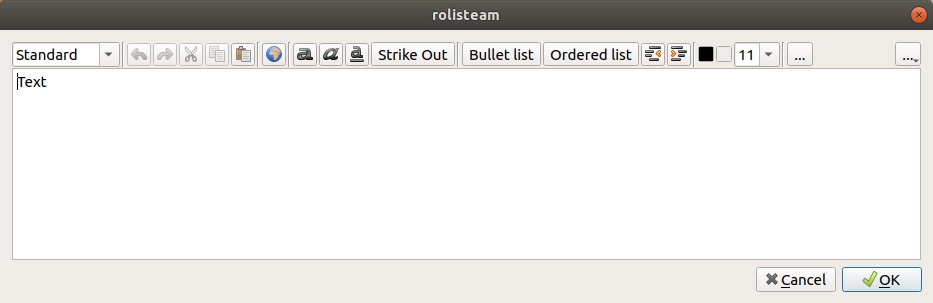 |
 | Текст із рамкою | Те саме, що і текст, але без рамки |
 | Обробник | Цей інструмент надає змогу захоплювати об'єкти на карті і переміщувати їх. Також зручно захопити елементи керування, щоб збільшити або обернути об'єкт (Ctrl + рух мишею). Також можна переміщувати об'єкт по всій карті, утримуючи натиснутою клавішу Shift та клацаючи на карті. |
 | Лінійка | За допомогою цього інструмента можна визначати відстань між двома точками на карті, враховуючи поточний визначений масштаб. |
 | Контур | Контур — це кілька ліній. Його можна замкнути та заповнити (клацанням правою кнопкою миші на шляху), а кожну точку можна переміщувати окремо. |
 | Прив'язка | It is possible to make a item anchored on another. This defines a parenthood relationship. If A is anchored on B, B is the parent of A. If B is moved, A is moved as well. If A is moved, B does not move. This feature makes easier any vehicles. You can move the vehicle, which means you move all passengers. |
 | Піпетка | Click on any item. Its color becomes the current color. On image, the color is exactly the one under the cursor. Press Shift while selecting a color, and the image is directly set as background. |
 | Add NPC Token | You can add PNJ, you can define the NPC name. The Plus symbol is the tool to add NPC on map. The NPC number is increased after adding NPC on map. It is possible to reset that number by clicking on the counter button. |
Панель інструментів
Колір тла
| Піктограма | Назва інструменту | Опис |
|---|---|---|
 | Show/Hide square Grid | Show or hide the square grid on map |
 | Show/Hide hexagon Grid | Show or hide the hexagon grid on map |
 | Сітка згори | Display the grid above the map. |
 | GM only permission | Set permission to GM only. |
 | PC move permission | Set permission to PC move. Player can only move their token on the map. |
 | All permission | Set permission to All. Player can do anything. |
 | Visibility Mode: hidden | The whole map appears blank to the players. |
 | Visibility Mode: Fog of War | Show the map under the fog of war. |
 | Visibility Mode: Show all | The map is completely visible to players. |
 | Layer: Ground | Set ground layer as current edition layer. |
 | Layer: Object | Set object layer as current edition layer. |
 | Layer: Character | Set character layer as current edition layer. |
 | Layer: Game Master | Set game master layer as current edition layer. |
 | Layer: hide all other layers | All layers are hidden except the current one. |
 | Character's sight | Show character sights when the fog of war is up. |
| Show all transparent Items | Make visible any transparent item. |
 | Show/hide PC names | Character name can be displayed just under the token. You can hide it. |
 | Show/Hide NPC names | NPC name can be displayed just under the token. You can hide it. |
 | Show/Hide NPC numbers | NPC number can be displayed just under the token. You can hide it. |
 | Show/Hide character states | Character state can be displayed on the token. You can hide it. |
 | Show/Hide health bar | Character health bar can be displayed just under the token. You can hide it. |
 | Show/hide initiative score | Character initiative score can be displayed on the left top corner of token. You can hide it. |