 Table of content
Introducción
One of the biggest new features is the battle map. The main difference between this new plan and the older maps is that new plans allow to add items and modify them. For example, you can add a rectangle and change its size, rotate it or move it. All items can manage these kinds of transformation.
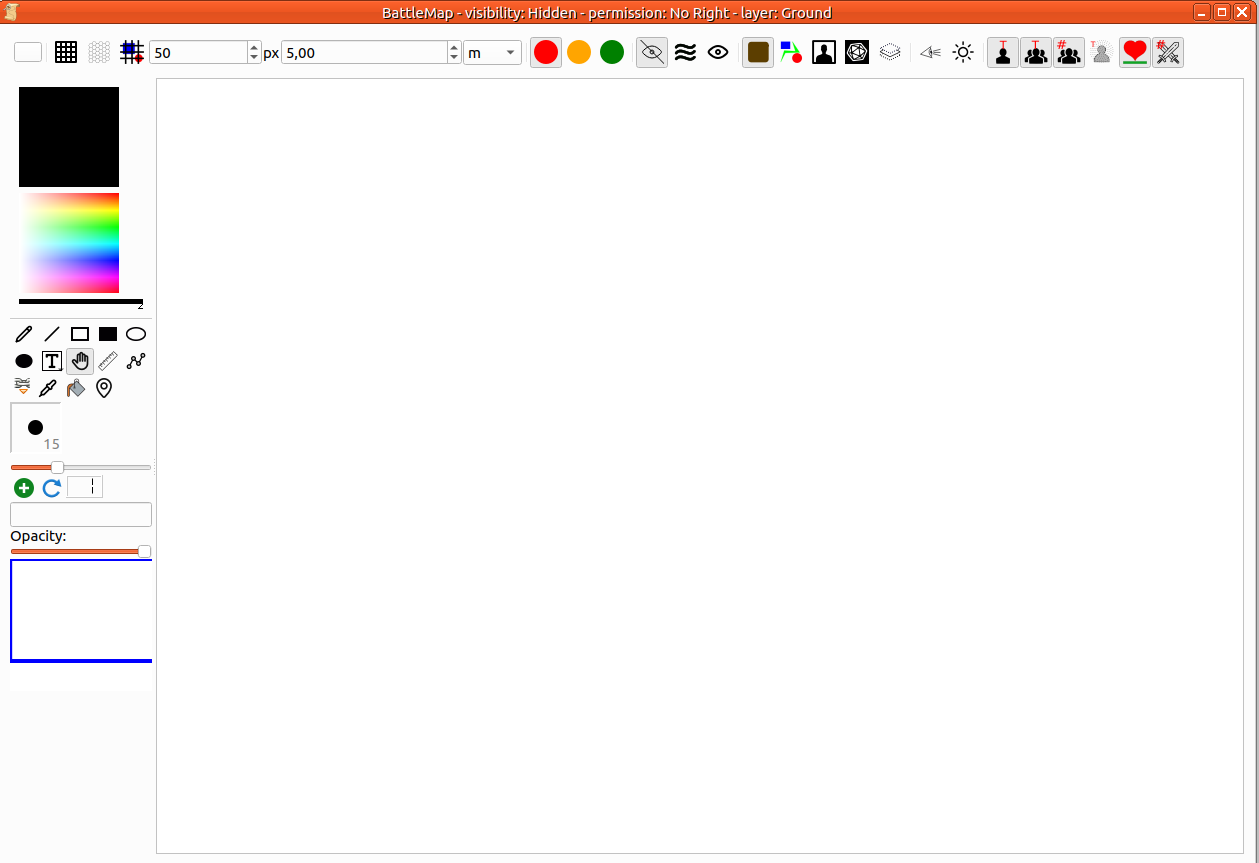
Lista de funciones
- Light and dynamic shadow
- Z Positioning : each item is added above the previous ones.
- Infinite Plan Size
- Ampliar
- Reducir
- Move the camera on the plan
- Amend item on map (Add, upsize, downsize, move, rotate, delete)
- Management of Character Token
- These token can show a picture of character.
- Añadir imágenes
- These images can be animated (gif…)
- Management of collision
- Item can be placed into set (ground, object or character)
- Opacidad
- otros…
Nuevo mapa
You just have to go on file menu then to go in the new submenu then Map A dialog opens:
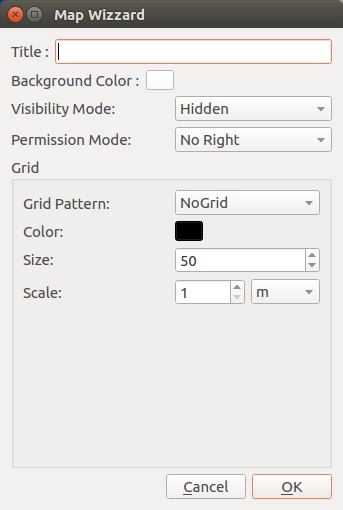
- The title appears at the top of the map frame. It makes easier to find it in your workspace.
- The background color is used as global color of the map (default: white).
- The visibility defines how your players see the map. Hidden means they see nothing. Fog Of War hides all map's elements (you can amand the fog to make visible some elements). Visible, all map items can be seen by the players. You can change the visibility at any moment in the game).
- Permission Mode describes which actions players can do. You can change it at any moment.
- Grid scheme defines the shape of the grid: no scheme (no grid), square grid, hexagonal grid.
- You can change the Grid color.
- The size set how many pixels one single grid scheme is.
- The scale defines in the unit of your choice the size of one grid scheme.
Editar mapa
Barra de herramientas

| Zona # | Nombre | descripción |
|---|---|---|
| 1 | Fondo y cuadrícula | 1. Set/Change the background color 2. Show/Hide the grid 3. Hexagon Grid 4. Grid above the map (or below) 5. Size of one grid cell 6. Scale 7. Scale Unit |
| 2 | Modo de permisos | There are 3 permissions mode: Red (selected): GM only Orange: player can move only their character token Green: Player can do anything |
| 3 | Modo de visibilidad | There are 3 modes: 1. Hidden (selected): The map appears normally for GM but fully blank on the players side. 2. Fog of War: The map will be shown under the FOW. It is up to the GM to unveil part of it. 3. Visible: The map will be fully visible. |
| 4 | Current editing Layer | The map manages a current layer. It means you can only change visual element belonging to this peculiar layer. There are 4 layers: 1. Ground: all items representing static element should be put here: roads, paths, fields… 2. Object: All elements which can be obstacle for characters should be put in this layer. 3. Character(selected): All tokens for PC or NPC. 4. Game Master: Items in this layer are only visible for the GM. Visual elements belong to the layer in which they were added. Item can move to other layer easy from contextual menu. Last button: hide the content of all other layers, it makes easier to edit the map. |
| 5 | Opciones de visibilidad | 1. Activate Character vision in Fog Of War 2. Show all transparent Items |
| 6 | Opciones del mapa | 1. Show/Hide text under PC tokens 2. Show/Hide text under NPC tokens 3. Show/Hide number under NPC tokens 4. Show/Hide PC state 5. Show/Hide health bar under Any tokens 6. Show/Hide Initiative score on token |
Caja de herramientas
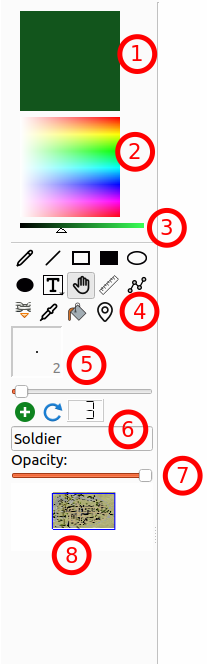
- Current color: All new element will be paint using this color. Double-click on it to get a color selector dialog.
- Color selector: Change current color by clicking on the right part.
- Color brightness: Make the current color darker or lighter (one way to select the black color).
- Edition tools: Pen, Line, Empty Rectangle, filled Rectangle, Empty Ellipse, filled Ellipse, Text with border (long press to select without border), Handler (select and move), Rule, Path, Anchor, pipette, paint bucket, Point of interest. The number of available tools will change accordingly to the painting mode or your permission (for player).
- Pen Width: Define the pen width: line width and border size. It will only be applied on new items.
- Quick NPC tool: Add NPC token quickly on the map. Each will receive a name (text field) and a number (auto incremental, can be reset).
- Opacity: Change opacity of the current selected object.
- Map's thumbnail: Let you see the whole map. The blue rectangle is showing the part of the map you are seeing right now.
When the Fog of War is enabled on the toolbar, the Painting mode selector will appear just below the 3. Color brightness selector. The mask or unmask modes only affect the Fog of War.
Primer paso: Definir el terreno
Make sure the Ground layer is selected on the map's toolbar. Add all element to draw the ground, or you can drag and drop a picture with the ground of your map.
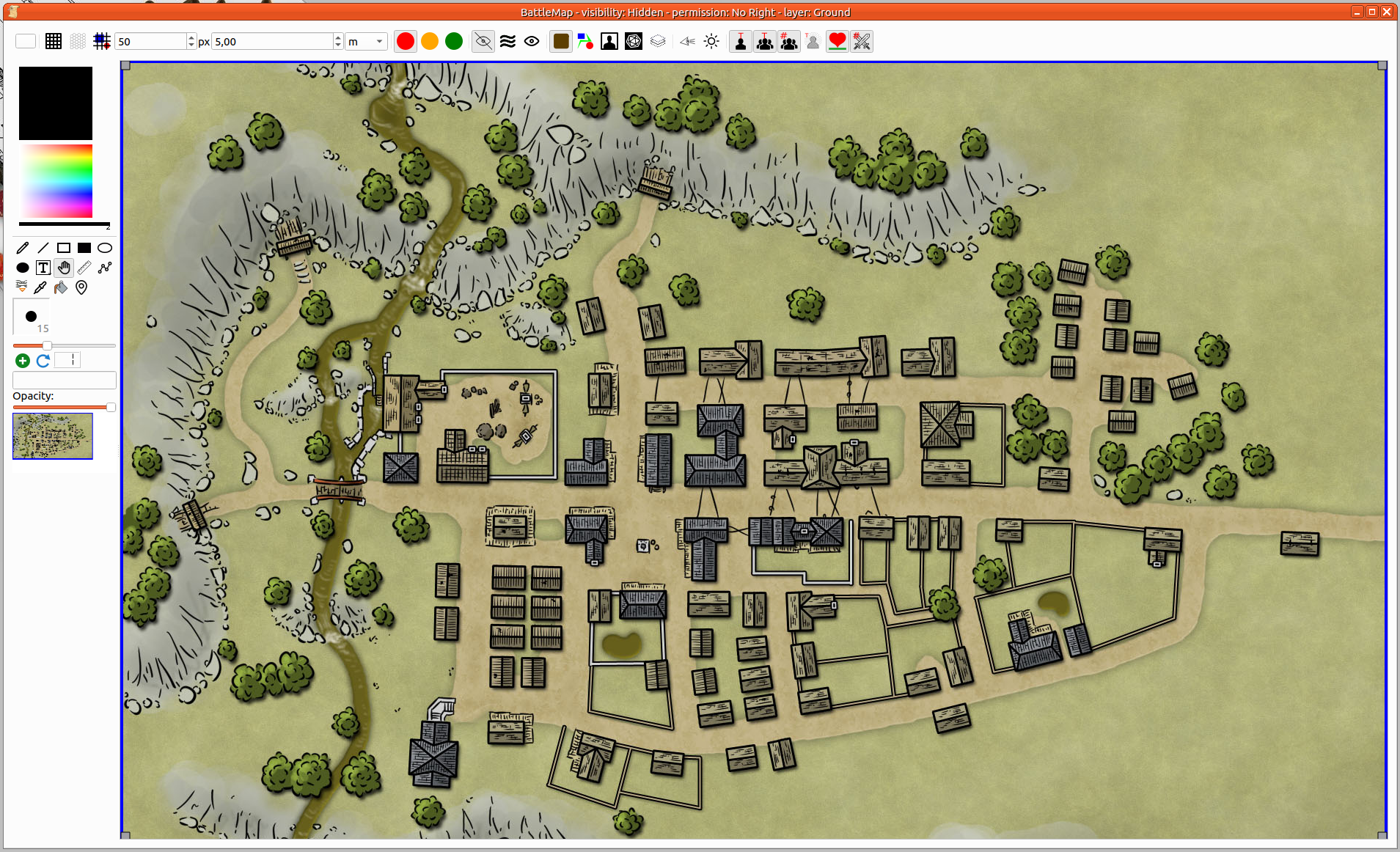
Paso 2: Añadir elementos
You can make some change on the fly. Adding walls, doors… Make sure you have selected the Object layer on the map's toolbar.
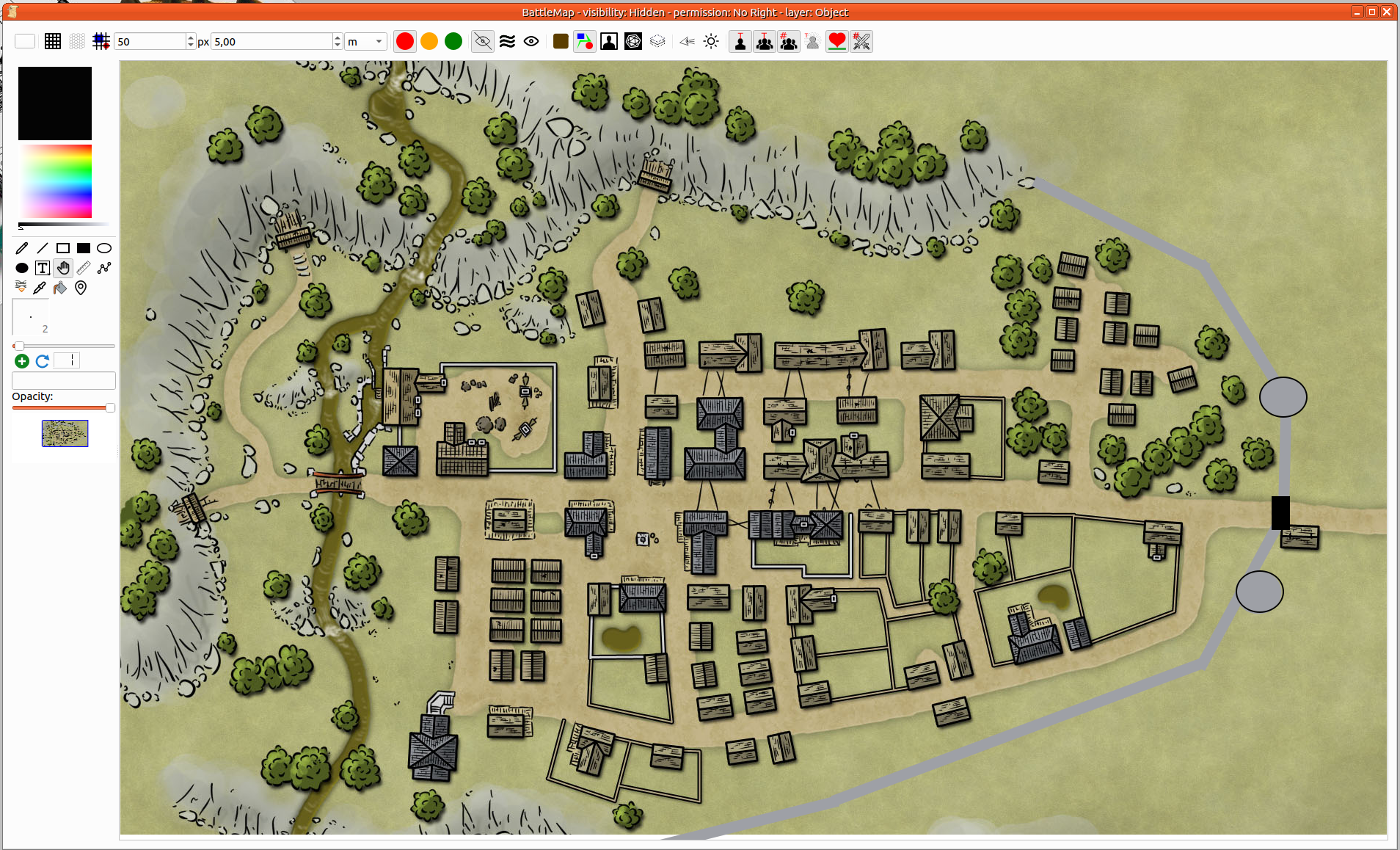
Paso 3: Modificar elementos
Common modifications such as Position, Rotation and Size can be managed though the Handler tool. Use it to select an item.
- Position : Click and hold on any selected item then move the mouse. The item will follow your mouse moves until you release the mouse left-button.
- Size : you can adjust its size by moving its corners handles (grey rectangle).
- Rotation : Pressing
CTRLwill allow you to change the rotation of the item.
Many actions on items and map can be performed from the contextual menu. The first part of the menu are action on the selection (1 or several item(s)). The second part refers to the map.
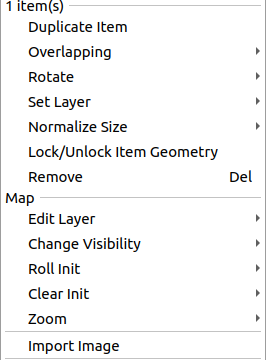
- Duplicate Items (item): Make a copy of all selected item (with same size and position). It is up to you to move them at the right place.
- Overlapping (item): If you want item to be below or above another.
- Rotate (item): Apply some peculiar value to rotation.
- Set layer (item): Show or define the current layer in which items belong to.
- Normalize size (item): When several items are selected you can resize them accordingly to some criteria: biggest, smallest, average…
- Lock/Unlock Geometry (item): Prevent any unwanted changes.
- Remove (item): remove the item from the map.
- Edit Layer (Map): Change current edition layer of the map (same as layer tool on toolbar)
- Change visibility (Map): Same as visibility selector on toolbar
- Roll Init (Map): Roll initiative on all NPC, All PC or Both. The initiative command must be defined in the token (More details)
- Clear Init (Map): Remove initiative scores from all NPC, All PC or Both.
- Zoom (Map): Manage the zoom.
- Import image (Map): Import image as Item on the map. Same as drag and drop or paste.
Paso 4: Añadir PNJ
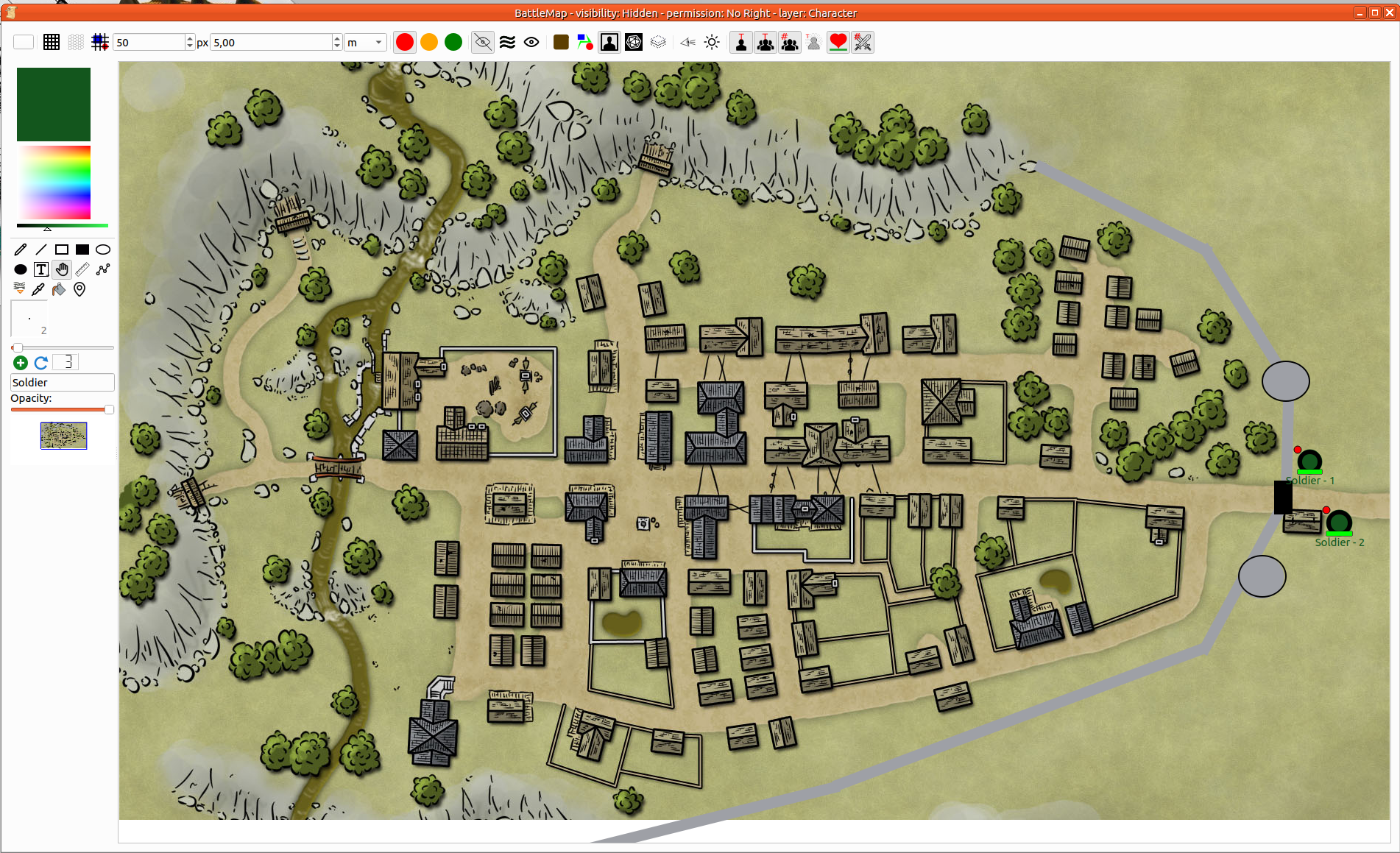
Finally, you can add NPC tokens. To do that, you can use the quick NPC tool from the toolbox, or you can drag and drop character from the antagonist panel.
Paso 5: Guardar el mapa
Ctrl+s or Menu Campaign > Save Campaign will do the job.
While playing

You can drag & drop character tokens from the player/character panel
Selection and Manipulations
Ampliar y reducir
In order to control the zoom on map, you may use the contextual menu (right click on map), and select the proper option.
Alternatively, you can press Shift and use your mouse's wheel.
The zoom center is based on the cursor position.
Scroll up/down/left/right
- Select the handler as current tool.
- Then press Shift (to grab the map).
- Finally, click anywhere on the map and move it.
Select one or more Items
Select an item is easy. You just have to (right-)click on it. In order to select several items, you must keep the Control key pressed.
In details
Painting tools [ToolBox]
| Icono | Nombre de la herramienta | Descripción |
|---|---|---|
 | Light | Add light on map, in fog of war mode, the light reveals map elements |
 | Lápiz | You can paint line which follow your mouse. The diameter selector defines the width of the line. You can move the item but changing its curve is not supported. |
 | Línea recta | You must define two points to add straight line to the map: the starting point and the ending point. The diameter selector defines the width of the line. You can move the item and change the position of starting point or ending point. |
 | Rectángulo vacío | You can add empty rectangle on the map. The diameter selector defines the width of the border. You can move the rectangle and change its size by moving its corner. |
 | Rectángulo relleno | You can add Filled rectangle on the map. You can move the rectangle and change its size by moving its corner. |
 | Elipse vacía | You can add empty ellipse on the map. The diameter selector defines the width of the border. You can move the rectangle and change its size by moving its two handles. |
 | Elipse rellena | You can add Filled ellipse on the map. You can move the rectangle and change its size by moving its two handles. |
 | Texto | Add text element on the map. The text can be changed. The border defines the maximum width of the text. The text is wrapped automatically. The zone height adapts itself given the number of line. It is possible to add blank line manually to improve the readability. The text item manages HTML. To make it possible, you may paste webpage, the formatting is the same or directly you can edit the text thank of the rich text editor.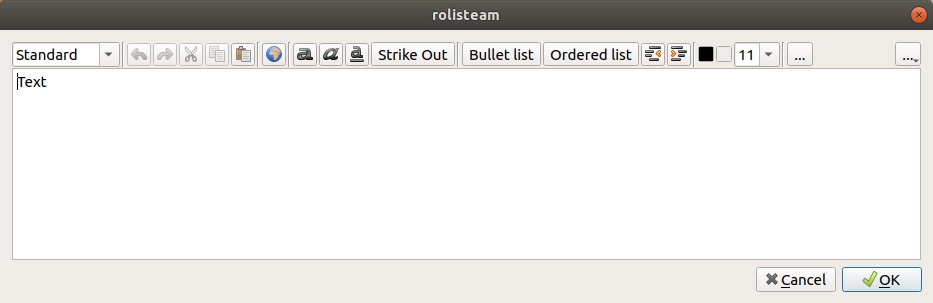 |
 | Texto con borde | Same than text but with border |
 | Handler | This tool allows to catch items on the map and move them. It is also useful to catch control square to make bigger or rotate the item (Ctrl + Mouse motion) It is also possible to move the item the whole map by keeping pressed the Shift pressed and clicking on the map. |
 | Regla | This tool gets the distance between two points on the map given the current defined scale. |
 | Ruta | Path is several lines. It can be closed and filled (right-click on the path) and each point can be moved individually. |
 | Ancla | It is possible to make a item anchored on another. This defines a parenthood relationship. If A is anchored on B, B is the parent of A. If B is moved, A is moved as well. If A is moved, B does not move. This feature makes easier any vehicles. You can move the vehicle, which means you move all passengers. |
 | Pipeta | Click on any item. Its color becomes the current color. On image, the color is exactly the one under the cursor. Press Shift while selecting a color, and the image is directly set as background. |
 | Añadir token de PNJ | You can add PNJ, you can define the NPC name. The Plus symbol is the tool to add NPC on map. The NPC number is increased after adding NPC on map. It is possible to reset that number by clicking on the counter button. |
Barra de herramientas
Color de fondo
| Icono | Nombre de la herramienta | Descripción |
|---|---|---|
 | Show/Hide square Grid | Show or hide the square grid on map |
 | Show/Hide hexagon Grid | Show or hide the hexagon grid on map |
 | Grid above | Display the grid above the map. |
 | GM only permission | Set permission to GM only. |
 | PC move permission | Set permission to PC move. Player can only move their token on the map. |
 | Permiso para todos | Define el permiso para todos. El jugador no puede hacer nada. |
 | Modo de visibilidad: oculto | The whole map appears blank to the players. |
 | Modo de visibilidad: niebla de guerra | Show the map under the fog of war. |
 | Modo de visibilidad: mostrar todo | The map is completely visible to players. |
 | Capa: terreno | Set ground layer as current edition layer. |
 | Capa: objeto | Set object layer as current edition layer. |
 | Capa: personaje | Set character layer as current edition layer. |
 | Layer: Game Master | Set game master layer as current edition layer. |
 | Layer: hide all other layers | All layers are hidden except the current one. |
 | Character's sight | Show character sights when the fog of war is up. |
| Show all transparent Items | Make visible any transparent item. |
 | Show/hide PC names | Character name can be displayed just under the token. You can hide it. |
 | Show/Hide NPC names | NPC name can be displayed just under the token. You can hide it. |
 | Show/Hide NPC numbers | NPC number can be displayed just under the token. You can hide it. |
 | Show/Hide character states | Character state can be displayed on the token. You can hide it. |
 | Show/Hide health bar | Character health bar can be displayed just under the token. You can hide it. |
 | Show/hide initiative score | Character initiative score can be displayed on the left top corner of token. You can hide it. |