 Table of content
Darrere de la paraula imatges, hi ha diverses coses. De fet, les imatges estan a tot arreu al Rolisteam. Podeu compartir imatges a través dels elements multimèdia d'imatges. Els avatars de personatge també són imatges. Les imatges es poden afegir a mapes i mapes mentals.
La major part de l'ús d'imatges comença a partir del diàleg del carregador d'imatges.
Diàleg del carregador d'imatges
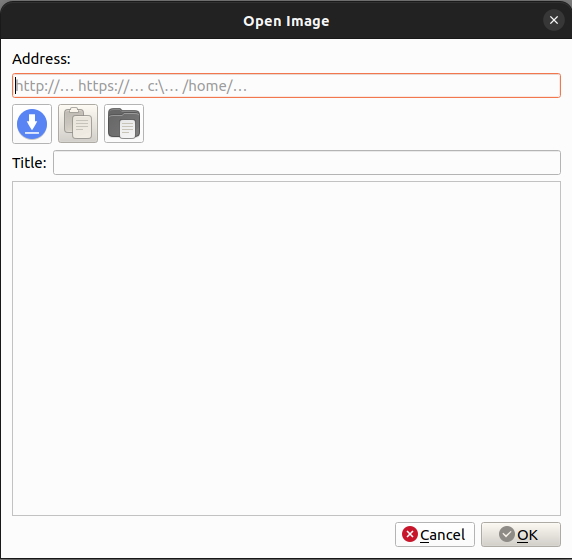
- Adreça: pot ser un URL, un URI a un fitxer local.
- Botó 1: Baixada: feu-hi clic per a activar la baixada de la imatge des de l'URL (normalment es fa automàticament).
- Botó 2: Enganxament: enganxa el contingut de la imatge al diàleg.
- Botó 3: Obertura: obre el selector de fitxers per a seleccionar el fitxer del vostre ordinador.
- Títol: D'acord amb el nom del fitxer (si és rellevant), el diàleg intenta establir el títol de la imatge. Podeu editar-lo.
- Vista prèvia de la imatge
Imatge quadrada
L'avatar requereix que la imatge sigui quadrada. Per a respectar-ho, el diàleg del carregador d'imatges permet seleccionar un quadrat dins de la imatge.
Imatge - Multimèdia
Totes les finestres d'elements multimèdia d'imatge tenen el títol següent: Nom del fitxer.jpg - imatge. Com qualsevol element multimèdia (com ara fulls de personatges, mapes, mapes mentals…), podeu ocultar o mostrar la imatge des de la barra d'eines a la finestra principal.
Obre un element multimèdia d'imatge
Obre la imatge des del menú principal de l'aplicació: (Fitxer > Obre > Imatge). A continuació, la imatge oberta s'envia a tots els usuaris.
Desa la imatge
Per al DJ, la imatge oberta recentment es desa automàticament a la campanya,
així la podeu reutilitzar més tard.
Per al Jugador, el camí del fitxer es desa a l'historial. La pròxima vegada podreu carregar-lo més fàcilment.
Menú contextual
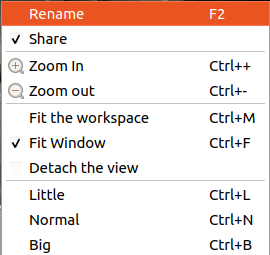
Ajusta a la finestra està activat de manera predeterminada. En aquesta configuració, el Rolisteam assegura que tota la imatge és visible. És molt útil per a imatges enormes. Si voleu ampliar una part concreta de la imatge, cal desactivar-ho.
| Acció | Descripció |
|---|---|
| Reanomena | Canvia el nom de la imatge |
| Comparteix | Defineix l'estat de compartició de la imatge (predeterminat: compartida) |
| Apropa | Amplia (desactivat si s'ajusta a la finestra) |
| Allunya | Redueix (desactivat si s'ajusta a la finestra) |
| Ajusta a l'espai de treball | Recalcula la mida millor de la finestra, útil per a una finestra realment gran. |
| Ajusta a la finestra | Assegura que la imatge es mostra d'acord amb la mida de la finestra. |
| Separa la vista | La vista se separa del Rolisteam i apareix com una altra finestra |
| Petita | Estableix el nivell de zoom a 0,4 (desactivat si s'ajusta a la finestra) |
| Normal | Estableix el nivell de zoom a 1 (desactivat si s'ajusta a la finestra) |
| Gran | Estableix el nivell de zoom a 4 (desactivat si s'ajusta a la finestra) |
Oculta la imatge
Hi ha dues maneres d'ocultar la imatge. Podeu fer clic a la creu de la finestra o podeu fer clic al botó de la barra d'eines. La imatge està oculta (només per a vós). Per tornar-lo a mostrar, només heu de fer clic al seu botó a la barra d'eines.
Tanca la imatge
El DJ o el propietari de la imatge la poden tancar. Això significa que la imatge desapareixerà de l'espai de treball de cada jugador. Per a fer-ho, seleccioneu la finestra de la imatge, després, dins del menú Fitxer, feu clic a Tanca el fitxer
Formats admesos
El Rolisteam accepta molts formats estàndard com: *.jpg,*.png i *.bmp.