 Table of content
Introducció
Una de les novetats més grans és el mapa vectorial. La diferència principal entre aquest pla nou i els mapes més antics és que els plans nous permeten afegir elements i modificar-los. Per exemple, podeu afegir un rectangle i canviar-ne la mida, girar-lo o moure'l. Tots els elements poden gestionar aquest tipus de transformació.
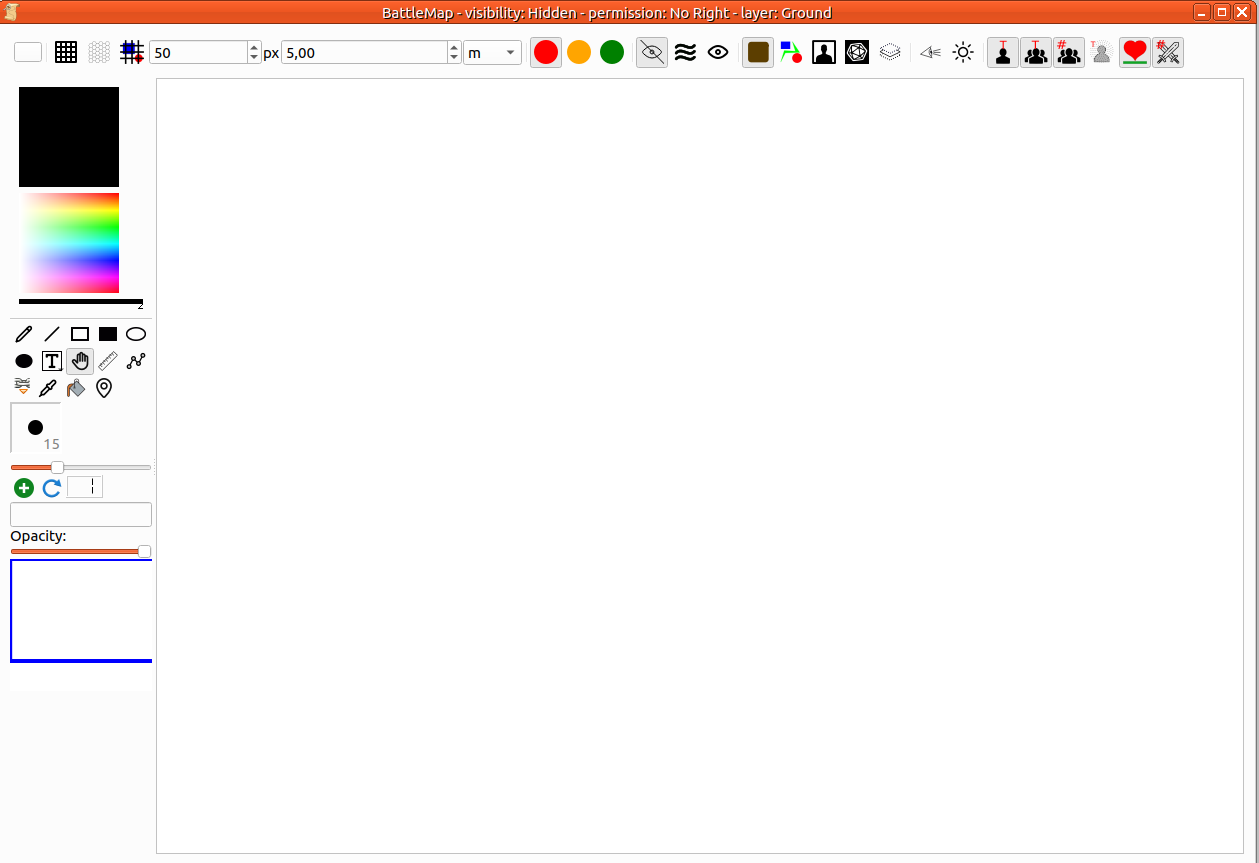
Llista de característiques
- Posicionament Z: cada element s'afegeix per sobre dels anteriors.
- Mida infinita del pla
- Apropa
- Allunya
- Mou la càmera en el pla
- Modifica l'element al mapa (afegeix, augmenta la mida, redueix la mida, mou, gira, suprimeix)
- Gestió del testimoni de personatges
- Aquests testimonis poden mostrar una imatge de personatge.
- Afegeix imatges
- Aquestes imatges poden ser animades (gif…)
- Gestió de col·lisió
- L'element es pot col·locar en un conjunt (terreny, objecte o personatge)
- Opacitat
- altres…
Mapa nou
Només heu d'anar al menú fitxer i després anar al submenú nou i després al Mapa vectorial s'obre un diàleg:
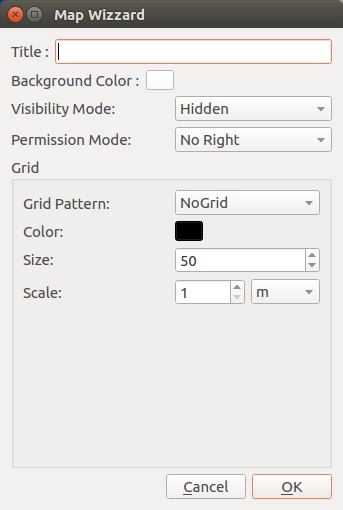
- El títol apareix a la part superior del marc del mapa. Fa que sigui més fàcil trobar-lo a l'espai de treball.
- El color de fons s'utilitza com a color global del mapa (predeterminat: blanc).
- La visibilitat defineix com els jugadors veuen el mapa. Ocult vol dir que no veuen res. Boira de guerra oculta tots els elements del mapa (podeu esmorteir la boira per a fer visibles alguns elements). Visible, tots els elements del mapa els poden veure els jugadors. Podeu canviar la visibilitat en qualsevol moment del joc).
- El mode de permís descriu quines accions poden fer els jugadors. Podeu canviar-ho en qualsevol moment.
- L'esquema de quadrícula defineix la forma de la quadrícula: sense esquema (sense quadrícula), quadrícula quadrada, quadrícula hexagonal.
- Podeu canviar el color de la quadrícula.
- La mida estableix quants píxels té un esquema de quadrícula únic.
- L'escala defineix a la unitat de la vostra elecció la mida d'un esquema de quadrícula.
Edita el mapa
Barra d'eines

| Núm. zona | Nom | descripció |
|---|---|---|
| 1 | Fons i quadrícula | 1. Estableix/canvia el color de fons 2. Mostra/oculta la quadrícula 3. Quadrícula d'hexàgon 4. Quadrícula a dalt del mapa (o a sota) 5. Mida d'una cel·la de la quadrícula 6. Escala 7. Unitats de l'escala |
| 2 | Mode de permís | Hi ha 3 modes de permís: Vermell (seleccionat: només DJ Taronja: el jugador pot moure només el testimoni del seu personatge Verd: el jugador pot fer-ho tot |
| 3 | Mode de visibilitat | Hi ha 3 modes: 1. Ocult (seleccionat): El mapa apareix normalment per al DJ però completament en blanc a la vessant dels jugadors. 2. Boira de guerra: El mapa es mostrarà amb boira de guerra. Depèn del DJ desvetllar part d'ell. 3. Visible: el mapa serà totalment visible. |
| 4 | Capa d'edició actual | El mapa gestiona una capa actual. Vol dir que només es pot canviar un element visual que pertany a aquesta capa en particular. Hi ha 4 capes: 1. Terreny: tots els elements que representen un element estàtic s'han de posar aquí: carreteres, camins, camps… 2. Objecte: Tots els elements que poden ser un obstacle per als personatges s'han de posar en aquesta capa. 3. Personatge(seleccionat): Tots els testimonis per a un PJ o PNJ. 4. Director de joc: Els elements d'aquesta capa només són visibles al DJ. Els elements visuals pertanyen a la capa en què s'han afegit. L'element pot moure's fàcilment a una altra capa des del menú contextual. Últim botó: oculta el contingut de totes les altres capes, facilita l'edició del mapa. |
| 5 | Opcions de visibilitat | 1. Activa la visió de personatge a Boira de guerra 2. Mostra tots els elements transparents |
| 6 | Opcions del mapa | 1. Mostra/oculta el text als testimonis de PJ 2. Mostra/oculta el text als testimonis de PNJ 3. Mostra/oculta el número als testimonis de PNJ 4. Mostra/oculta l'estat del PJ 5. Mostra/oculta la barra de salut a Qualsevol testimoni 6. Mostra/oculta la puntuació d'iniciativa al testimoni |
Quadre d'eines
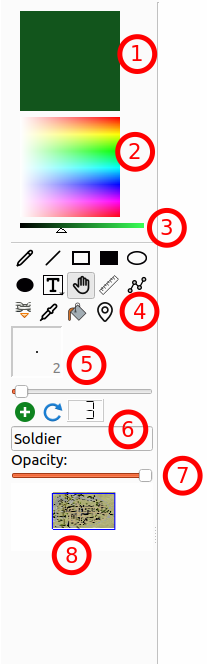
- Color actual: tot element nou es pintarà utilitzant aquest color. Feu-hi doble clic per a obtenir un diàleg del selector de color.
- Selector de color: canvia el color actual fent clic a la part dreta.
- Lluminositat del color: fa que el color actual sigui més fosc o més clar (una manera de seleccionar el color negre).
- Eines d'edició: llapis, línia, rectangle buit, rectangle emplenat, el·lipse buida, el·lipse emplenada, text amb vora (prem llarg per a seleccionar sense vora), maneta (selecciona i mou), regla, camí, àncora, pipeta, cub de pintura, punt d'interès. El nombre d'eines disponibles canviarà segons el mode de pintura o el vostre permís (per al jugador).
- Amplada del llapis: defineix l'amplada del llapis: amplada de la línia i mida de la vora. Només s'aplicarà sobre elements nous.
- Eina ràpida de PNJ: afegeix ràpidament un testimoni de PNJ al mapa. Cada un rebrà un nom (camp de text) i un número (incrementat automàticament, es pot restablir).
- Opacitat: canvia l'opacitat de l'objecte seleccionat actualment.
- Miniatura de mapa: permet veure tot el mapa. El rectangle blau mostra la part del mapa que esteu veient ara mateix.
Quan la boira de guerra estigui activada a la barra d'eines, el selector mode de pintura apareixerà just a sota del 3. Selector de lluminositat del color. Els modes d'emmascarament o de desemmascarament només afecten la boira de guerra.
Primer pas: definiu el terreny
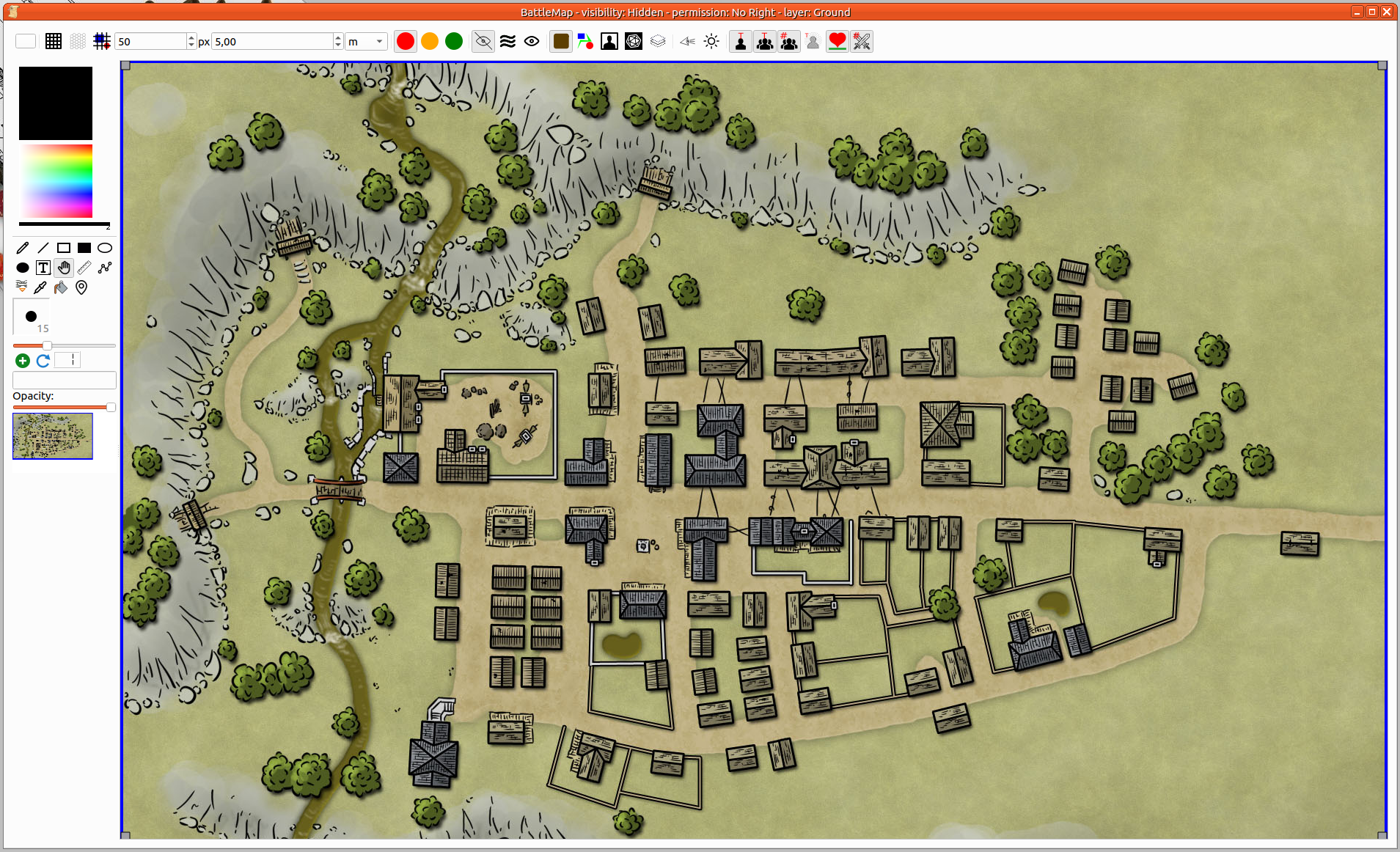
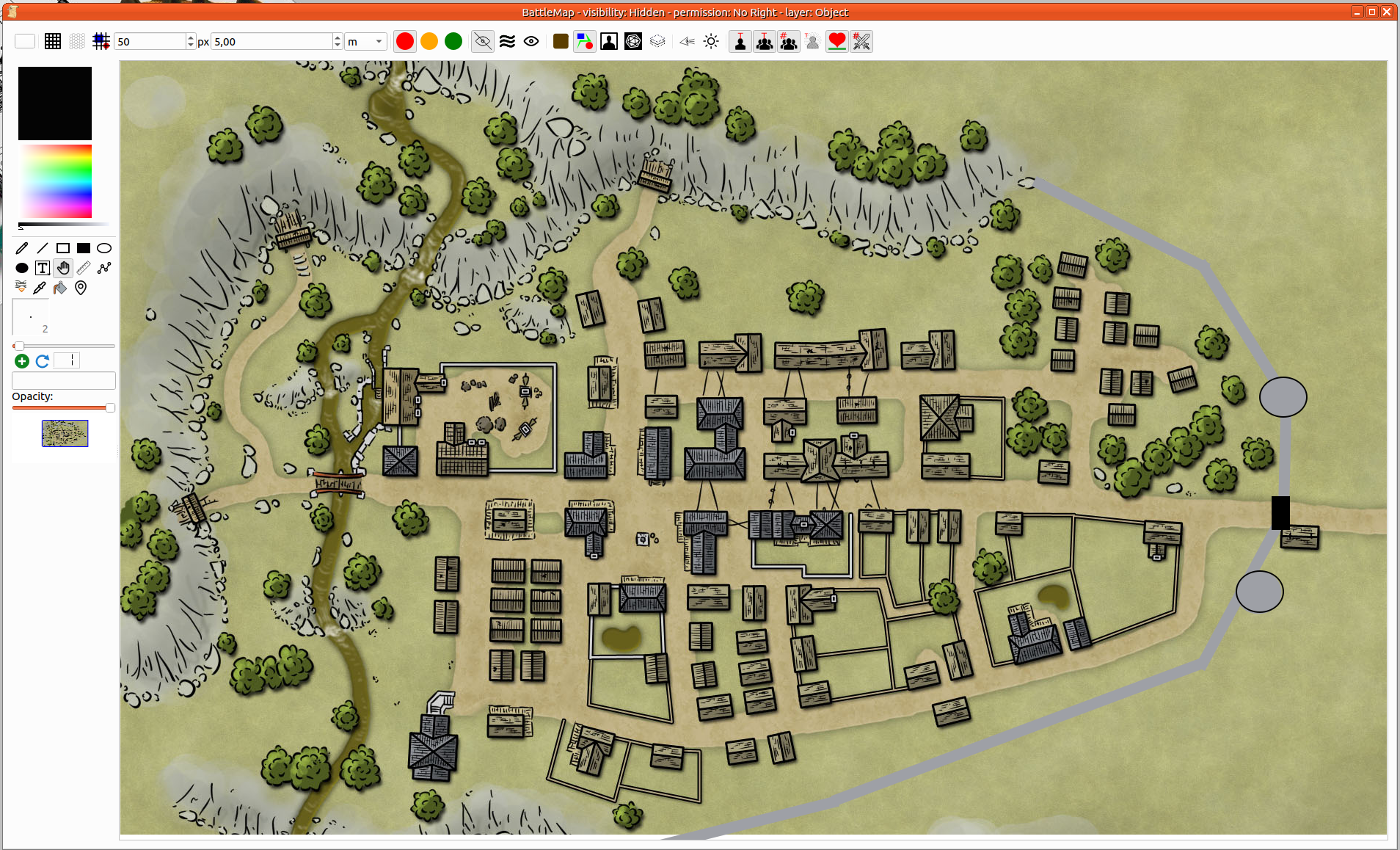
Assegureu-vos que la capa de terreny està seleccionada a la barra d'eines del mapa. Afegiu tots els elements per a dibuixar el terreny, o podeu arrossegar i deixar anar una imatge amb el terreny del mapa.
Pas 2: afegiu elements
Podeu fer algun canvi al vol. Afegint parets, portes… Assegureu-vos que heu seleccionat la Capa d'objecte a la barra d'eines del mapa.
Pas 3: modificació d'elements
Les modificacions comunes com posició, gir i mida es poden gestionar a través de l'eina Maneta. Utilitzeu-la per a seleccionar un element.
- Posició: feu clic i manteniu premut sobre qualsevol element seleccionat i, a continuació, moveu el ratolí. L'element seguirà els moviments del ratolí fins que deixeu anar el botó esquerre del ratolí.
- Mida: podeu ajustar la seva mida movent les manetes de les cantonades (rectangle gris).
- Gir: en prémer
CTRLpodreu canviar el gir de l'element.
Moltes accions sobre els elements i el mapa es poden realitzar des del menú contextual. La primera part del menú és l'acció sobre la selecció (1 o diversos elements). La segona part fa referència al mapa.
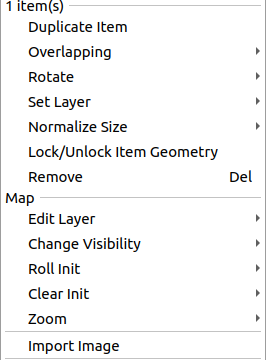
- Elements duplicats (element): fa una còpia de tot l'element seleccionat (amb la mateixa mida i posició). Llavors el podreu moure'l al lloc correcte.
- Superposició (element): si voleu que l'element estigui per sota o per sobre d'un altre.
- Gir (element): aplica un valor concret al gir.
- Estableix la capa (element): mostra o defineix la capa actual a la qual pertanyen els elements.
- Mida normal (element): quan se seleccionen diversos elements, podeu canviar-los la mida d'acord amb alguns criteris: més gran, més petit, mitjana…
- Bloqueja/desbloqueja la geometria (element): evita qualsevol canvi no desitjat.
- Elimina (element): elimina l'element del mapa.
- Edita la capa (Mapa): canvia la capa d'edició actual del mapa (igual que l'eina de capes de la barra d'eines)
- Canvia la visibilitat (Mapa): Igual que el selector de visibilitat a la barra d'eines
- Iniciativa de tirada (Mapa): Iniciativa de tirada a tots els PNJ, tots els PJ o tots dos. L'ordre d'iniciativa s'ha de definir en el testimoni (Més detalls)
- Neteja la iniciativa (Mapa): elimina les puntuacions d'iniciativa de tots els PNJ, de tots els PJ o de tots dos.
- Zoom (Mapa): gestiona el zoom.
- Importa una imatge (Mapa): Importa la imatge com a element al mapa. Igual que arrossegar i deixar anar o enganxar.
Pas 4: afegiu PNJ
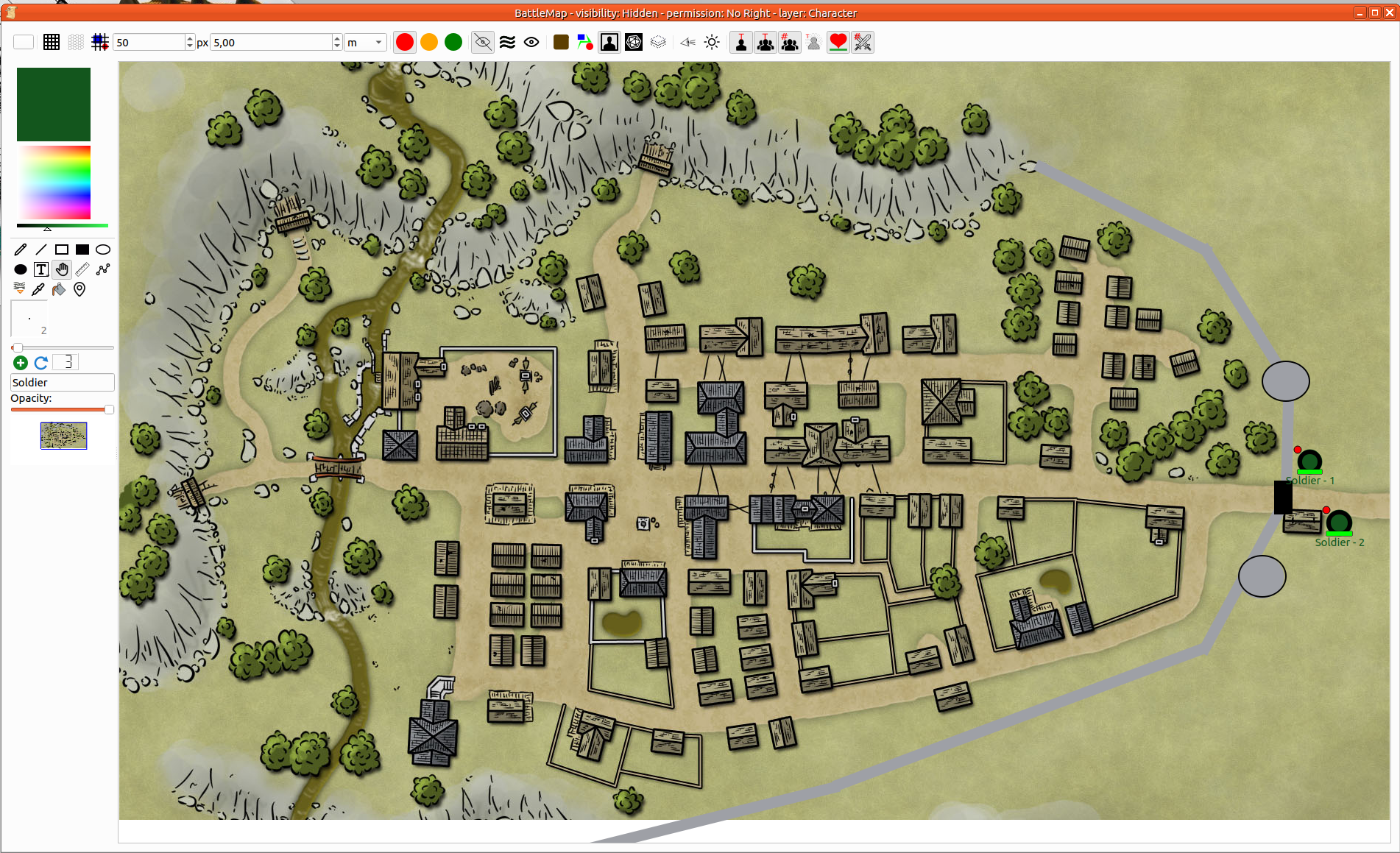
Finalment, podeu afegir testimonis de PNJ. Per a fer-ho, podeu utilitzar l'eina ràpida de PNJ des del quadre d'eines, o podeu arrossegar i deixar anar el personatge des del plafó d'antagonistes.
Pas 5: deseu el mapa
Ctrl+s o Menú de campanya > Desa la campanya farà la feina.
Mentre es juga

Podeu arrossegar i deixar anar els testimonis de personatge des del plafó de jugador/personatge
Selecció i manipulacions
Apropament i allunyament
Per controlar el zoom sobre el mapa, podeu utilitzar el menú contextual (clic dret sobre el mapa) i seleccionar l'opció adequada.
Alternativament, podeu prémer Maj i utilitzar la roda del ratolí.
Desplaçament amunt/avall/esquerra/dreta
- Seleccioneu la maneta com a eina actual.
- Després premeu Maj (per a agafar el mapa).
- Finalment, feu clic a qualsevol lloc del mapa i mogueu-lo.
Seleccioneu un o més elements
Seleccionar un element és fàcil. Només cal fer-hi clic amb el botó dret. Per a seleccionar diversos elements, heu de mantenir premuda la tecla Control.
En detall
Eines de pintura [Quadre d'eines]
| Icona | Nom d'eina | Descripció |
|---|---|---|
 | Llapis | Podeu pintar línies que segueixin el ratolí. El selector de diàmetre defineix l'amplada de la línia. Podeu moure l'element però no s'admet el canvi de la seva corba. |
 | Línia recta | Cal definir dos punts per a afegir una línia recta al mapa: el punt d'inici i el punt final. El selector de diàmetre defineix l'amplada de la línia. Podeu moure l'element i canviar la posició del punt d'inici o del punt final. |
 | Rectangle buit | Podeu afegir un rectangle buit al mapa. El selector de diàmetre defineix l'amplada de la vora. Podeu moure el rectangle i canviar-ne la mida movent-ne la cantonada. |
 | Rectangle emplenat | Podeu afegir un rectangle emplenat al mapa. Podeu moure el rectangle i canviar-ne la mida movent-ne la cantonada. |
 | El·lipse buida | Podeu afegir una el·lipse buida al mapa. El selector de diàmetre defineix l'amplada de la vora. Podeu moure el rectangle i canviar-ne la mida movent les dues manetes. |
 | El·lipse emplenada | Podeu afegir una el·lipse emplenada al mapa. Podeu moure el rectangle i canviar-ne la mida movent les dues manetes. |
 | Text | Afegeix un element de text al mapa. El text es pot canviar. La vora defineix l'amplada màxima del text. El text s'ajusta automàticament. L'alçada de la zona s'adapta tenint en compte el nombre de línies. És possible afegir una línia en blanc manualment per a millorar la llegibilitat. L'element de text gestiona HTML. Per a fer-ho possible, podeu enganxar la pàgina web, el format és el mateix o directament podeu editar el text gràcies a l'editor de text ric.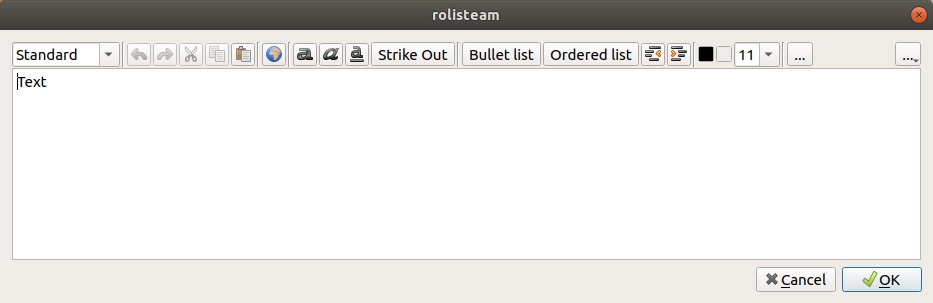 |
 | Text amb vora | Igual que el text però amb vora |
 | Maneta | Aquesta eina permet capturar elements en el mapa i moure'ls. També és útil agafar el quadrat de control per a fer més gran o girar l'element (Ctrl + Moviment del ratolí) També és possible moure l'element a tot el mapa mantenint premuda la tecla Maj i fent clic sobre el mapa. |
 | Regla | Aquesta eina obté la distància entre dos punts en el mapa indicant l'escala definida actualment. |
 | Camí | El camí són diverses línies. Es pot tancar i omplir (clic dret sobre el camí) i cada punt es pot moure individualment. |
 | Àncora | És possible fer un element ancorat en un altre. Això defineix una relació de paternitat. Si A està ancorat a B, B és el pare de A. Si B es mou, A també es mou. Si A es mou, B no es mou. Aquesta característica facilita qualsevol vehicle. Es pot moure el vehicle, el que significa que es mouen tots els passatgers. |
 | Pipeta | Feu clic a qualsevol element. El seu color es converteix en el color actual. |
 | Afegir un testimoni de PNJ | Podeu afegir PNJ, podeu definir el nom del PNJ. El símbol més és l'eina per a afegir PNJ al mapa. El número de PNJ augmenta després d'afegir el PNJ al mapa. És possible restablir aquest número fent clic al botó del comptador. |
Barra d'eines
Color de fons
| Icona | Nom d'eina | Descripció |
|---|---|---|
 | Mostra/oculta la quadrícula quadrada | Mostra o oculta la quadrícula quadrada al mapa |
 | Mostra/oculta la quadrícula hexagonal | Mostra o oculta la quadrícula hexagonal al mapa |
 | Quadrícula a sobre | Mostra la quadrícula a sobre del mapa. |
 | Permís de només el DJ | Estableix el permís només el DJ. |
 | Permís de moure el PJ | Establiu el permís per a moure el PJ. El jugador només pot moure el seu testimoni al mapa. |
 | Tots els permisos | Estableix el permís a tot. El jugador pot fer qualsevol cosa. |
 | Mode de visibilitat: ocult | Tot el mapa apareix en blanc als jugadors. |
 | Mode de visibilitat: boira de guerra | Mostra el mapa amb boira de la guerra. |
 | Mode de visibilitat: mostra-ho tot | El mapa és completament visible als jugadors. |
 | Capa: Terreny | Estableix la capa de terreny com a capa actual del mapa. |
 | Capa: Objecte | Estableix la capa de l'objecte com la capa d'edició actual. |
 | Capa: Personatge | Estableix la capa de personatges com a capa d'edició actual. |
 | Capa: Director de joc | Estableix la capa del director del joc com la capa d'edició actual. |
 | Capa: oculta totes les altres capes | Totes les capes estan ocultes excepte l'actual. |
 | Vista del personatge | Mostra les vistes dels personatges quan ha ha boira de guerra. |
 | Mostra tots els elements transparents | Fa visible qualsevol element transparent. |
 | Mostra/oculta els noms dels PJ | El nom del personatge es pot mostrar a sota del testimoni. Podeu ocultar-ho. |
 | Mostra/oculta els noms dels PNJ | El nom del PNJ es pot mostrar a sota del testimoni. Podeu ocultar-ho. |
 | Mostra/oculta els números dels PNJ | El número del PNJ es pot mostrar a sota del testimoni. Podeu ocultar-ho. |
 | Mostra/oculta els estats dels personatges | L'estat del personatge es pot mostrar al testimoni. Podeu ocultar-ho. |
 | Mostra/oculta la barra de salut | La barra de salut del personatge es pot mostrar a sota del testimoni. Podeu ocultar-ho. |
 | Mostra/oculta la puntuació d'iniciativa | La puntuació d'iniciativa del personatge es pot mostrar a la cantonada superior esquerra del testimoni. Podeu ocultar-ho. |