 Table of content
Vista general
Per a accedir als reproductors musicals, cal clicar damunt  .
.
Com podeu veure, el quadro de música té 3 reproductors de música. Es poden reproduir 3 sons alhora: música ambiental, fenòmens meteorològics i efectes sonors.
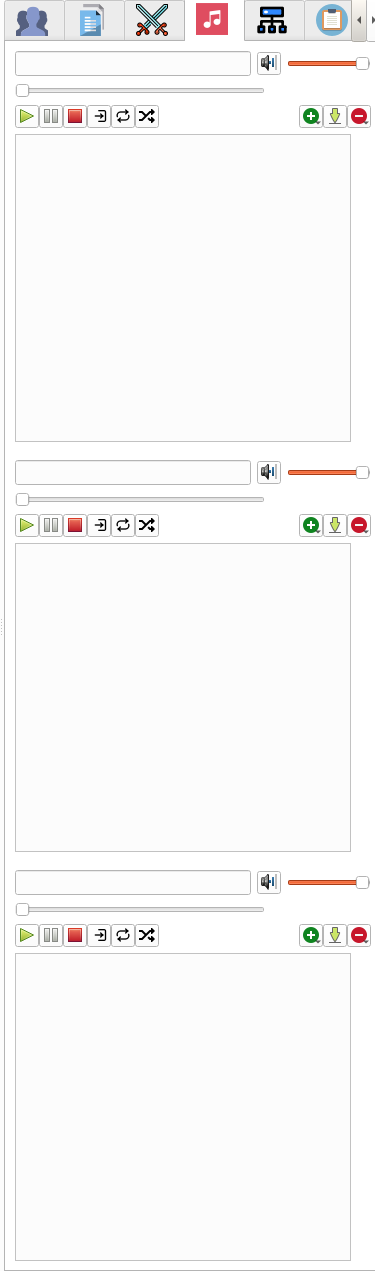
Com reproduir música a Rolisteam?
Hi ha dues maneres principals de reproduir música a les sessions de joc:
Mètode 1: Compartir un directori
El DJ ha de compartir un directori que continga tots els fitxers d'àudio (també pot tindre subdirectoris). Este directori (i els subdirectoris) s'ha de compartir amb tots els jugadors. Podeu compartir un arxiu del directori o utilitzar un servei per a assegurar que el directori s'actualitze a cada ordinador dels jugadors (DropBox oferix este servei, molts altres també).
A la vessant del jugador, este ha de definir el directori com a font en tots els reproductors d'àudio. A continuació, el reproductor d'àudio serà capaç de trobar el fitxer correcte i reproduir-lo.
Mètode 2: Servidor web
El DJ ha de posar tots els fitxers d'àudio en un servidor web amb el permís adequat. Llavors, pot crear una llista de reproducció (o diverses llistes de reproducció) amb enllaços http.
Açò és tot!
Característiques: Director de joc
Accions
Botons directes
| Icona | Descripció |
|---|---|
 | Reproduïx o reprén el fitxer seleccionat, fer doble clic damunt de la llista de reproducció també funciona. |
 | Posa en pausa l'àudio actual |
 | Para l'àudio actual |
 | Establix el mode de reproducció a ÚNIC |
 | Establix el mode de reproducció a Bucle |
 | Establix el mode de reproducció a Barreja |
 | Obri el submenú per a afegir un element multimèdia/flux/llista de reproducció nous a la llista de reproducció actual |
 | Guarda la llista de reproducció |
 | Suprimix el fitxer seleccionat de la llista de reproducció |
** l'aspecte exacte de totes les icones pot canviar segons la plataforma.
Menú contextual
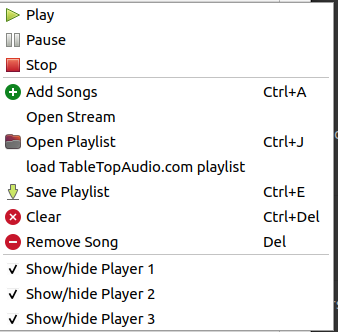
Des del menú contextual, podem accedir a totes les accions des del botó directe i mostrar/ocultar el reproductor.
Fitxers admesos
Cada reproductor d'àudio té la seua pròpia llista de reproducció. Dins de la llista de reproducció, és possible afegir el camí cap al fitxer, URL o llista de reproducció local.
Exemple:
- Fitxer remot:
http://myOwnWebServer.com/music/village.mp3 - Fitxer local:
c:\My Documents\audio\village.mp3 - Llista de reproducció local:
c:\My Documents\audio\rpg_playlist.m3u
Arrossegar i deixar anar
És possible arrossegar i deixar anar fitxers als ginys del reproductor. Els fitxers s'afigen a la llista. Els elements es col·loquen a la posició del cursor. Apareix una línia horitzontal. També podeu deixar anar directament el fitxer a la finestra principal. Després, s'afigen al primer jugador.
Característiques: Vessant del jugador
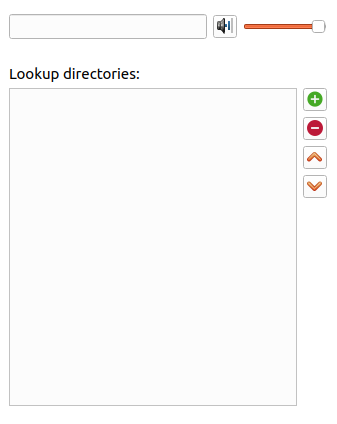
A la vessant del jugador, tenim menys elements. Encara tenim 3 reproductors. En la part superior, teniu la cançó actual en reproducció.
- Buit: no es reproduïx cap àudio.
- Ple de rodones negres: es reproduïx l'àudio (el nom del fitxer està ocult per a evitar qualsevol fuita)
- Text roig: s'ha produït un error.
A continuació, teniu la llista de directoris de busca. On l'usuari pot afegir tantes carpetes com siga necessari. També pot establir l'ordre d'estos directoris.
PMF
1. Puc transmetre música?
Rolisteam no transmet cap fitxer d'àudio. Envia informació del flux (com ara un URL) o un nom de fitxer a reproduir. Si voleu reproduir els vostres propis fitxers d'àudio s'han d'enviar a cadascun dels jugadors. Els jugadors han de posar-los en un directori i després, establir el directori com a directori de música en el reproductor d'àudio. Cada reproductor d'àudio té el seu propi directori.
Rolisteam no es pot utilitzar com a servidor de transmissió. Per tant, els fitxers de música no es transferixen a cada jugador. Hi ha dues raons per a açò:
- Problema d'amplada de banda
- Esta característica faria de Rolisteam un programari de pirateria d'acord amb les lleis franceses.
2. Com puc reproduir música des de TableTopAudio.com?
Rolisteam proporciona una llista de reproducció amb molta música de fons de TableTopAudio.com. Esta llista de reproducció es pot carregar des del menú contextual.
3. Quins formats de fitxer s'admeten?
Rolisteam utilitza el dorsal FFmpeg. Si no es pot llegir algun format d'àudio, instal·leu les dependències de FFmpeg.