 Table of content
Behind the word image, there are several things. In fact, Images are everywhere in Rolisteam. You can share images though the image media. Character avatars are also images. Images can be added to maps and mindmaps.
Most image usage starts from the image loader dialog.
Image loader dialog
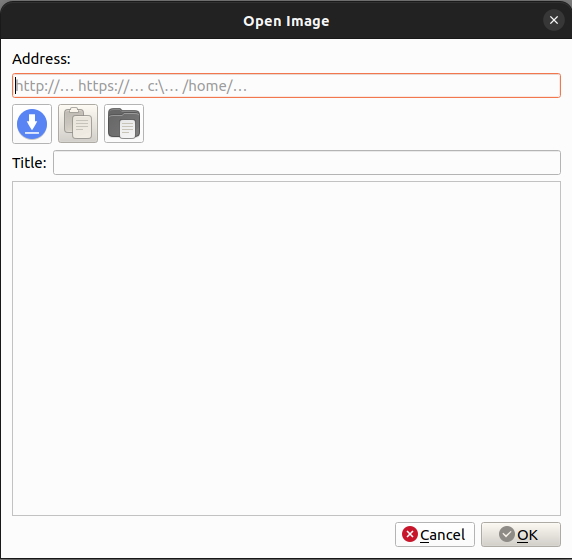
- Address: it can be url, uri to local file.
- Button 1: Download - click on it to trigger the download of the image from URL (normally it is done automatically).
- Button 2: Paste - paste image content into the dialog.
- Button 3: Open - open file selector to select file from your computer.
- Title: Accordingly to the file name (if relevant) the dialog tries to set the title of the image. You can edit it.
- Image preview
Square Image
Avatar required the image to be square. In order to respect that, the Image loader dialog allows you to select a square inside the image.
Image - Media
All image media windows have a title as follow: FileName.jpg - image.
As any media (such as charactersheets, maps, mindmaps…), you can hide or show the image from the toolbar on the mainwindow.
Open image Media
Open image from the main application menu: (File > Open > Picture).
Then, the opened image is sent to all users.
Save Image
For GM, the newly opened image is saved automatically into the campaign,
so you can reuse it later.
For Player, the file path is saved in your history. You will be able to load it easily next time.
Contextual Menu
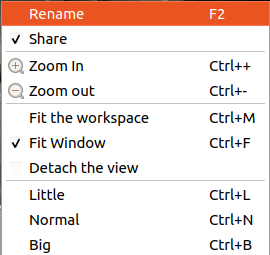
By default, fit window is enabled. In this configuration, Rolisteam ensure the whole image is visible.
It is really useful for huge image.
If you want to zoom in a particular part of the picture, you must disable it.
| Action | Description |
|---|---|
| Rename | Change the name of the image |
| Share | Define share status of the image (by default: shared) |
| Zoom In | Zoom in (disabled if Fit Window) |
| Zoom out | Zoom out (disabled if Fit Window) |
| Fit Workspace | recalculate the best size of the window, useful for really large window. |
| Fit Window | Make sure the image is displaying accordingly to the window size. |
| Detach View | The view is detached from Rolisteam, and it appears like another window |
| Little | Set zoom level to 0.4 (disabled if Fit Window) |
| Normal | Set zoom level to 1 (disabled if Fit Window) |
| Big | Set zoom level to 4 (disabled if Fit Window) |
Hide Image
There are two ways to hide the image. You may click on the cross on the window, or you may click on the button in the toolbar. The image is hidden (for you only). To show it again, just click on its button in the toolbar.
Close Image
The GM or the owner of the image may close it.
This means the image will disappear from every player's workspace.
To do so, Select the image window, then, inside the file menu, click on Close File
Supported formats
Rolisteam accepts many standard formats such as: *.jpg,*.png and *.bmp.