 Table of content
Tutorials
As an introduction of what rolisteam can do and how to use rolisteam, this tutorial should answer many of your questions.
The playground
To play together with Rolisteam. All participants must join the same virtual place. You can either host the game or join a game. They also need to define their role in the game: GM or Player. When creating your profile, you must select your connection mode.
| Role/connection | Hosting | Joining |
|---|---|---|
| Game Master | Yes | Yes |
| Player | Yes | Yes |
All possible configurations
- Game Master and Hosting
- Game Master and Joining
- Player and Hosting
- Player and Joining
Let set up a profile and see in details what should be defined in order to cover all possibilities.
In any case, you must define the following fields: (from top to bottom)
Add your profile
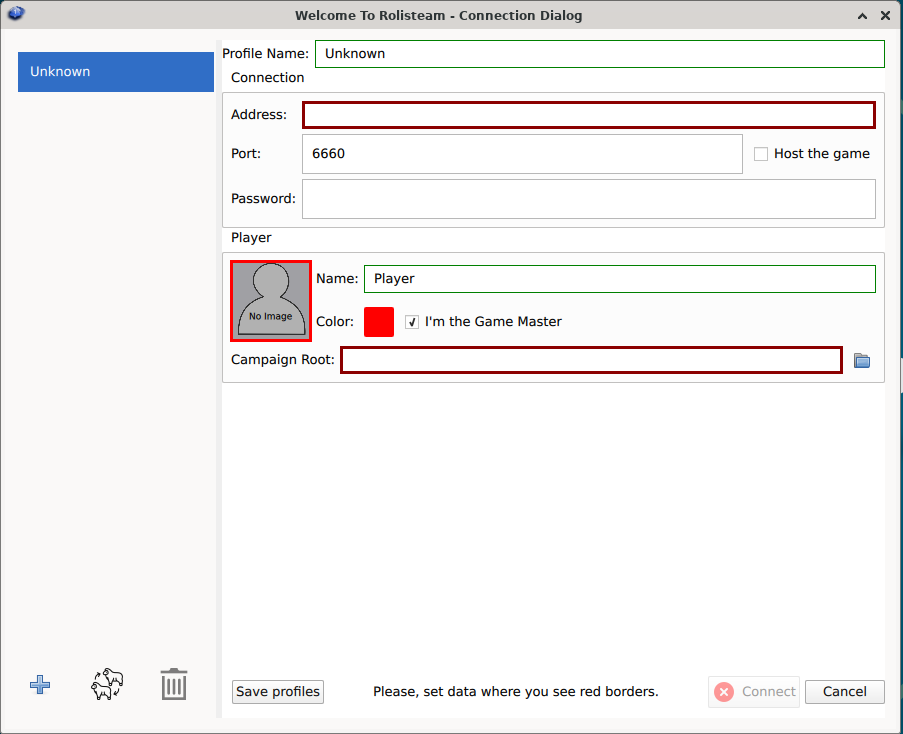
| id | Field | Description | Hosting | Joining | Game Master | Player |
|---|---|---|---|---|---|---|
| 0 | Profile list | list of all profiles | ||||
| 1 | Profile's name | A name to identify this game. E.g Monday game, L5R | Yes | Yes | Yes | Yes |
| 2 | Hostname | Address IP or hostname to join the server: 80.80.90.70 or rolisteam.blog.com | No | Yes | ||
| 3 | Port | Define the connection port default value: 6660 | Yes | Yes | ||
| 4 | Password | Set the password of the game. To set up a game without password, you can leave this part empty. | Yes (defining it) | Yes (wrong password will prevent connection) | Yes | Yes |
| 5 | Host the game | Must be checked to host the game | Checked | Unchecked | ||
| 6 | Player's name | Your name or nickname (that can be changed in game) | Yes | Yes | Yes | Yes |
| 7 | Player's Color | Select a color that reflect you (that can be changed in game) | Yes | Yes | Yes | Yes |
| 8 | Player's Image | Click on the gray part, you should be able to select an image inside the image dialog. (that can be changed in game) | Yes | Yes | Yes | Yes |
| 9 | I'm the game master | Define your profile as Game Master | Yes | No | ||
| 10 | Campaign Path | The path to the directory where the campaign is stored. | Yes | No | ||
| 11 | Character's name | Your character's name (that can be changed in game) | Yes | |||
| 12 | Character's Color | Select a color that reflect you (that can be changed in game) | Yes | |||
| 13 | Character's Image | Click on the gray part, you should be able to select an image inside the image dialog. (that can be changed in game) | Yes | |||
| 14 | Add profile | By default, Rolisteam has one profile, but you can add more | Yes | Yes | Yes | Yes |
| 15 | Clone profile | Select a profile and make a copy of it. All data will be reused. | Yes | No | ||
| 16 | Remove profile | Remove the selected profile | Yes | No | ||
| 17 | Save profiles | If you are doing many operations, don't forget to save them all often | Yes | No | ||
| 18 | Connect | When your profile is ready, this button can be clicked to start the connection and the game. | Yes | No | ||
| 19 | Cancel | Quit the application. Changes won't be saved. | Yes | No |
A player must have at least one character. You can have many characters.
Make sure the appropriate checkbox is checked.
Save and Connect
When your profile is fully defined, the connect button should be enabled. You can always click on the Save profile button and then try to connect.
If you are hosting the game, the Rolisteam will open directly. Otherwise, Rolisteam will try to reach the server, if rolisteam appears, you are connected.
Test internally before the real game
It is strongly recommended to test Rolisteam before actually host a real game. To do that, start rolisteam twice, first as hosting and GM, then as Client/Player. In this case, the address field must be localhost.
Now, you can play around with Rolisteam and see how it will appears to your player's screens.
Configuration
Rolisteam is a cross-platform software. You can use it on all 3 main systems: Windows, GNU/Linux and MacOs. It is written in C++ with the framework Qt. Rolisteam is virtual table to play games together with remote people. One of the players must provide the table (be the server). All the others must join his table (server).
As you may know, TTRPG may require a game master. In rolisteam, this role has more power and responsibilities.
Troubleshooting
Host the game
Game can be hosted with rolisteam on any computer. Please follow these steps.
Join online server
Player/RPG communities can now install rolisteam server on remote server. Just like any video game server. Please go to the server list to know online servers. Not all of them are listed there. Contact us to add your server to the list.
If you want to install rolisteam server for your community, find instruction here
Connectivity test
TODO : to be tested
We strongly recommend to test the connection before your first game. So we developed a connection test to know if your network let incoming connections reach Rolisteam.
Set the ip address and port on the webpage and click on Test.
The response should be Good News ! Connection succeed!.
Any other response means it does not work.
My player can't join!
If your players can't reach your server. It means you need to configure your network device to forward the port to your computer.
The process to do so, it is very different from one ISP to another. Please, search online for "Port forwarding + your ISP name".